How it works
See every step, with pictures.
Choose who you are below. Each step has a picture with numbers on every button, and a list that tells you what each number does. The accounts in the pictures are made-up examples. 33 steps in all, and everything is free.
Class, family or study group: which one?
There are three kinds of group. Pick the one that matches who you study with.
| Kind | Who is in it | How people join | What you can do |
|---|---|---|---|
| Class | A teacher and students | A join code the teacher shares | Homework with due dates, live games, leaderboard, student insights, reports |
| Family | A parent and children (up to 5 people) | The parent invites the child by email | Homework, live games, and how each child is doing |
| Study group | Friends aged 13 and over (up to 15 people) | A private invite link. No public search, no chat | Share flashcard sets and tests, and see what the group finds hard (progress sharing is optional) |
4 steps
Everyone: get started
Look around, create an account and sign in.
Start on the home page
Anyone can look around without an account. Pick your country first so you see the exams for your country, then browse exams, tests and flashcards from the top menu.
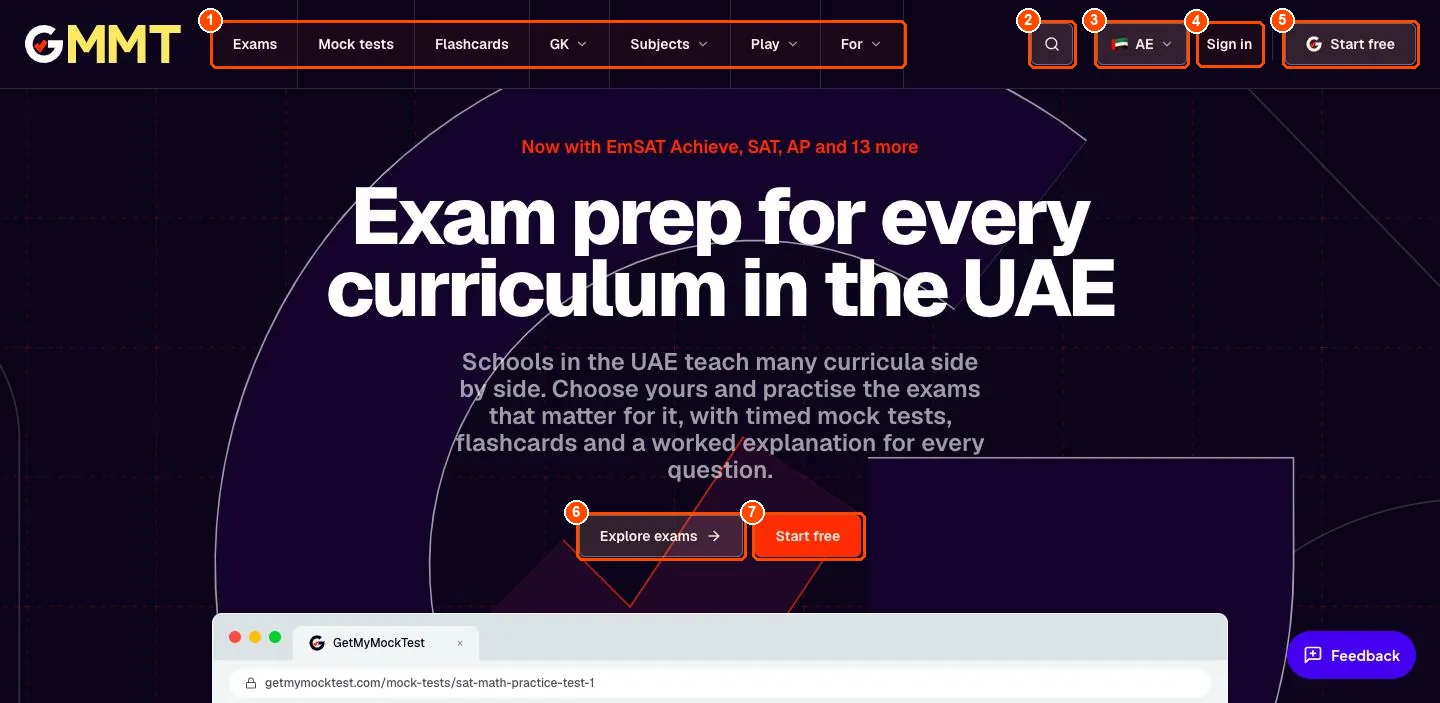
- Top menu. Exams, Mock tests, Flashcards, GK (general knowledge), Subjects, Play (games) and For (students, teachers, parents).
- Search. Search for an exam, a test or a deck.
- Country. Choose your country. The whole site then shows your exams first.
- Sign in. For people who already have an account.
- Start free. Create your free account with your Google account or your email.
- Explore exams. See every exam for your country.
- Start free. The same as the button at the top right.
Or continue with Google
The quickest way is the Google button at the top of the sign-up page. Press it, choose your Google account and you are in. You still choose whether you are a student, teacher, parent or school.
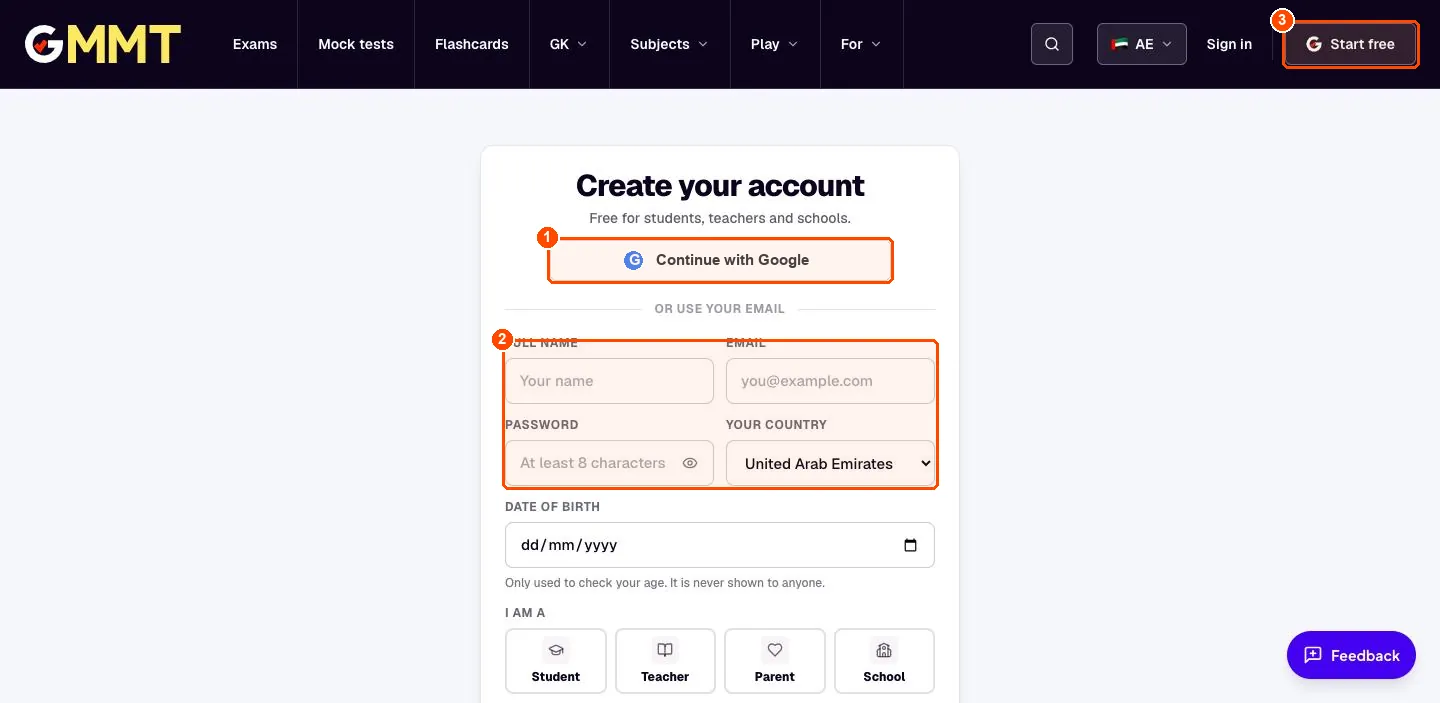
- Continue with Google. Signs you in with your Google account. We only receive your name and email address.
- Or use your email. The form below the line. See the next step.
- Start free. The top-right button also opens sign-up.
Create your account with your email
Fill in the form, choose who you are and press Create account. We email you a code to confirm the address. You must be at least 13. If you are under 18, ask a parent or guardian first.
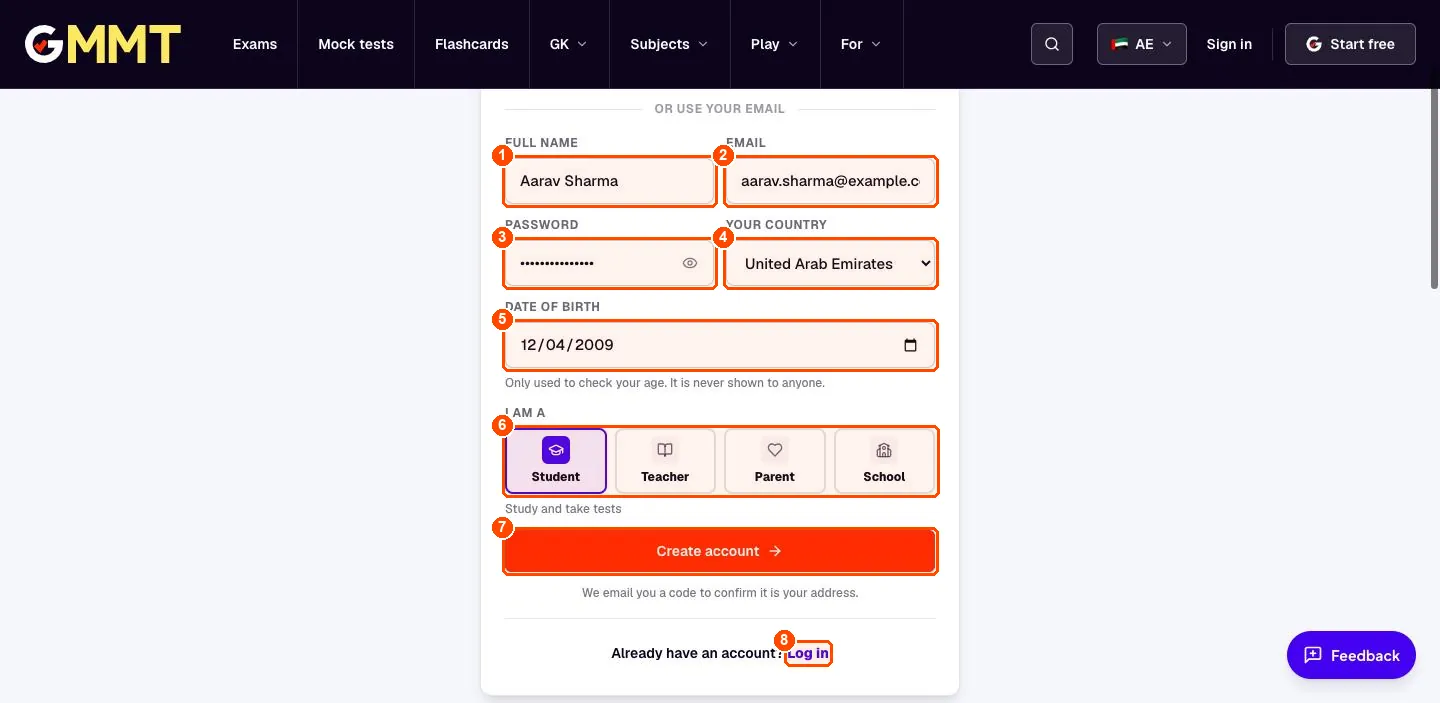
- Full name. Your name. Teachers and classmates may see it.
- Email. An email you can open. We send a confirmation code here.
- Password. At least 8 characters. The eye icon shows what you typed.
- Your country. Sets the exams you see first. You can change it later.
- Date of birth. Only used to check your age. It is never shown to anyone.
- I am a. Student (study and take tests), Teacher (classes and homework), Parent (family group) or School (many teachers).
- Create account. Creates the account and sends the confirmation code.
- Log in. Already have an account? Go to the sign-in page.
Sign in next time
Next time, press Sign in at the top. Use Google, or type your email and password. If you forgot your password, choose Email code and we email you a one-time code instead.
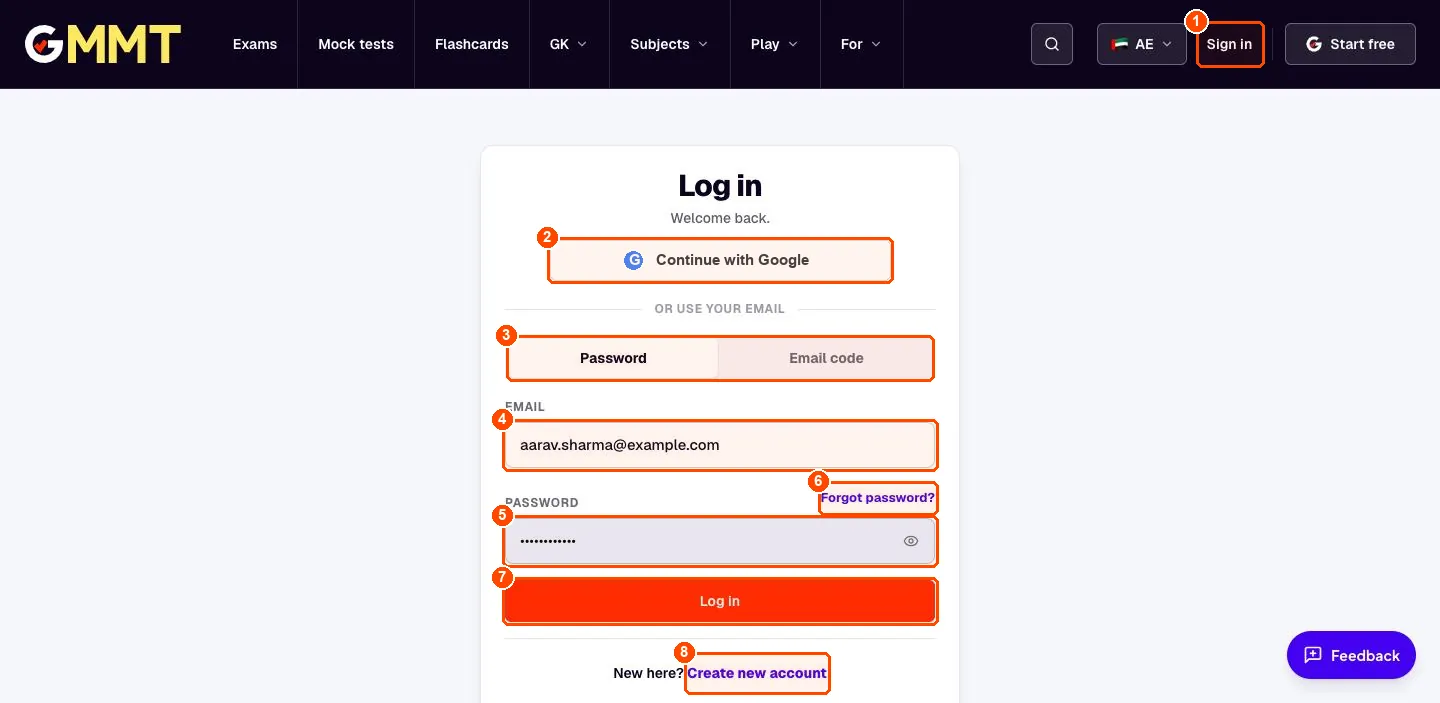
- Sign in. The Sign in link at the top of every page.
- Continue with Google. Signs in with the Google account you used to register.
- Password / Email code. Choose how to sign in. Email code sends you a one-time code, so you need no password.
- Email. The email you registered with.
- Password. Your password.
- Forgot password?. We email you a link to choose a new password.
- Log in. Signs you in and opens your dashboard.
- Create new account. New here? Go to sign-up.
14 steps
Students
Flashcards, mock tests, results, homework and live games.
Your student dashboard
This is your home base after signing in. Start a test or a deck with one tap, see your streak, and find the homework your teacher or parent set.
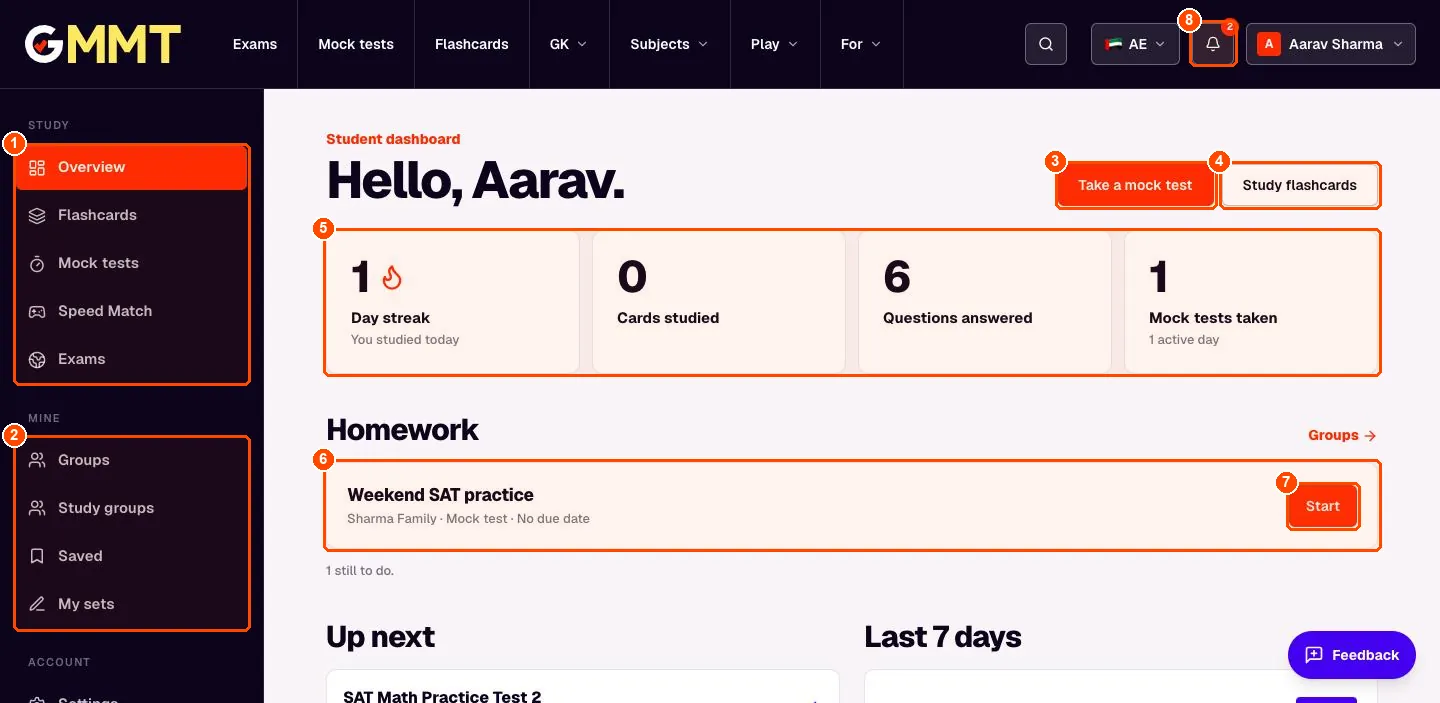
- Study menu. Overview, Flashcards, Mock tests, Speed Match and Exams: the main things you can practise.
- Mine menu. Your Groups (classes and family), Study groups with friends, Saved items and My sets (flashcards you made).
- Take a mock test. Open the list of timed practice tests.
- Study flashcards. Open the flashcard decks.
- Progress tiles. Your day streak, cards studied, questions answered and mock tests taken.
- Homework. Homework from your classes or your family group, with the group name and the due date.
- Start. Open the homework and begin.
- Bell. New homework and invites show up here.
Find a flashcard deck
Open Flashcards in the top menu or the left menu. Decks are grouped by exam, and the page starts with the exams of your country.
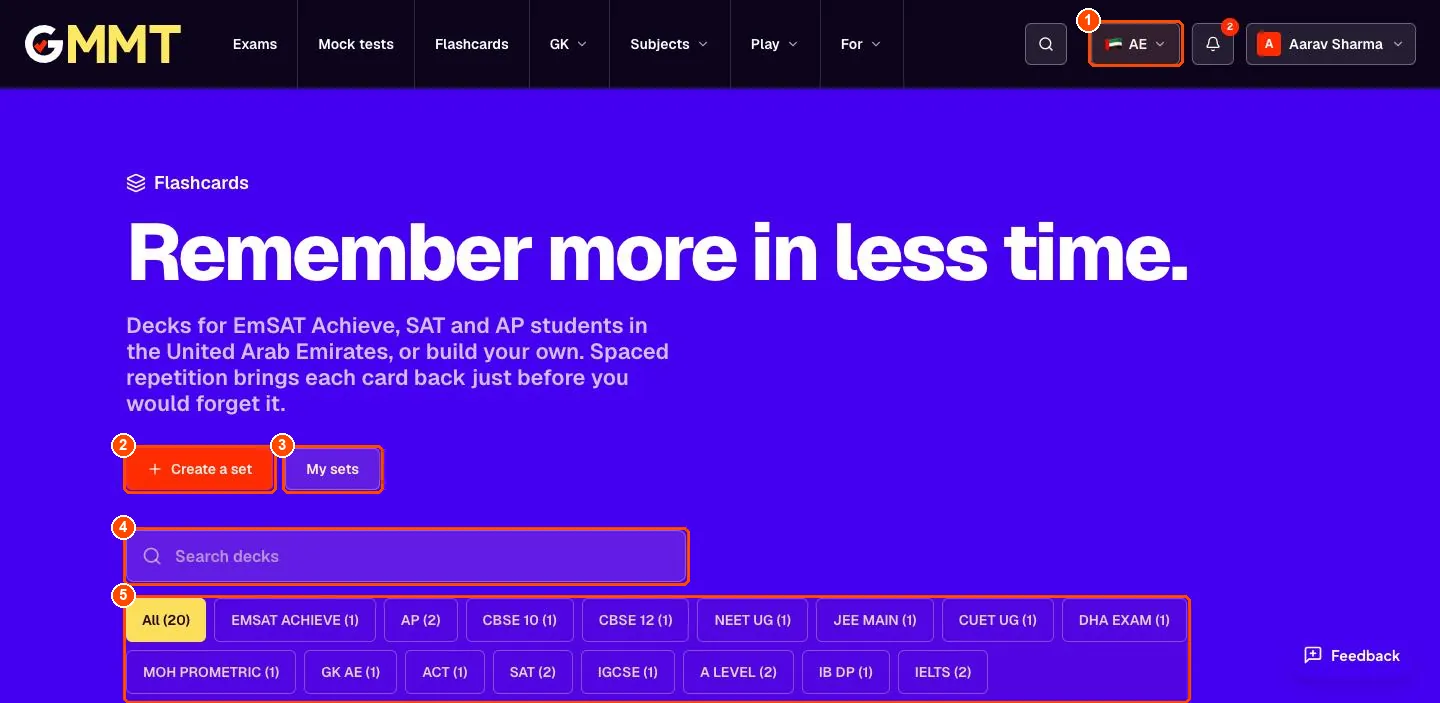
- Country. Switch country to see the exams and decks for that country.
- Create a set. Make your own flashcards. You can keep them private or share them by link.
- My sets. The decks you made.
- Search decks. Type a word such as formulas or vocabulary.
- Exam filters. Tap an exam to show only its decks. The number in brackets is how many decks it has.
Open a deck
Pick a deck to open it. From here you can study the cards, play a matching game, save the deck or make your own copy to edit.
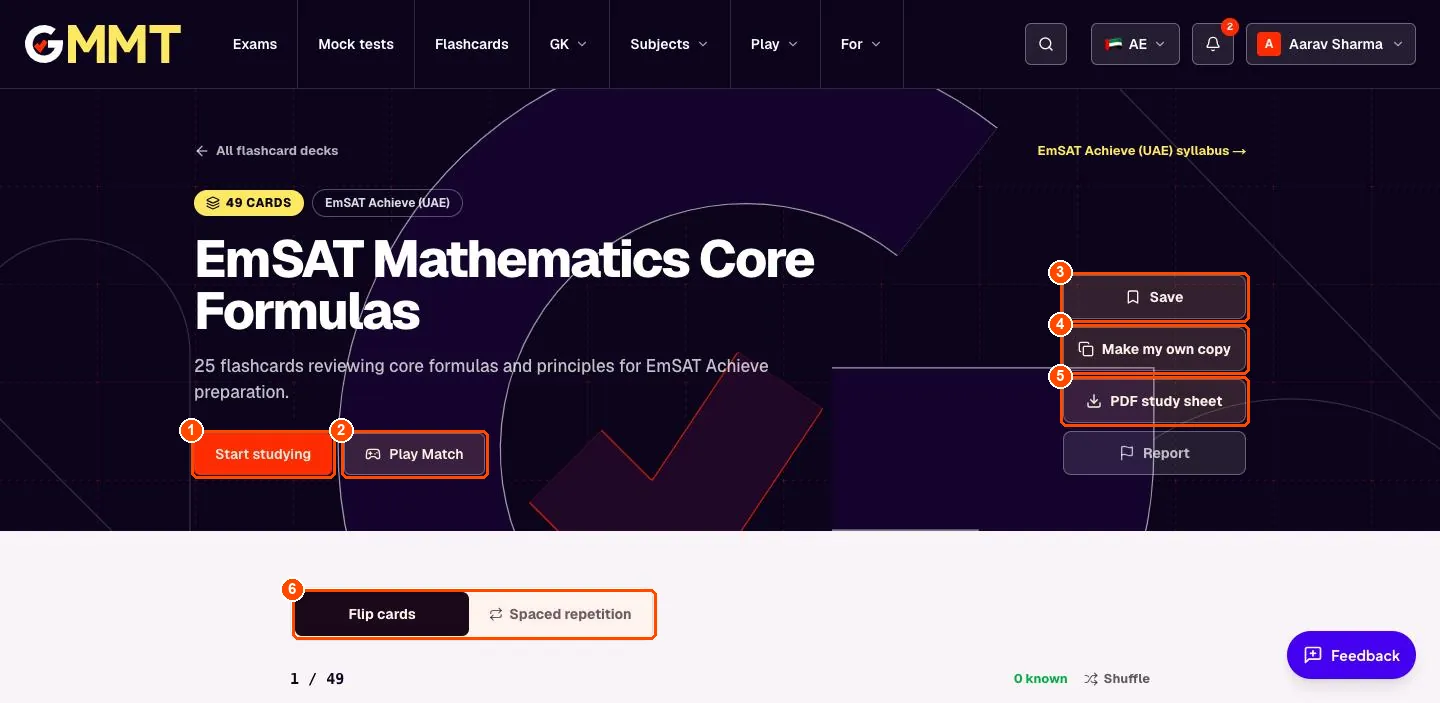
- Start studying. Go to the first card and begin.
- Play Match. A quick game: match each term with its meaning against the clock.
- Save. Keep this deck in your Saved list.
- Make my own copy. Copy the deck so you can change the cards.
- PDF study sheet. Download all the cards as a printable sheet.
- Flip cards / Spaced repetition. Flip cards shows every card in order. Spaced repetition shows the cards you are about to forget.
Study the cards
Read the term, say the answer to yourself, then click the card (or press the Space bar) to flip it. Tell us honestly how you did and the site brings the hard cards back sooner.
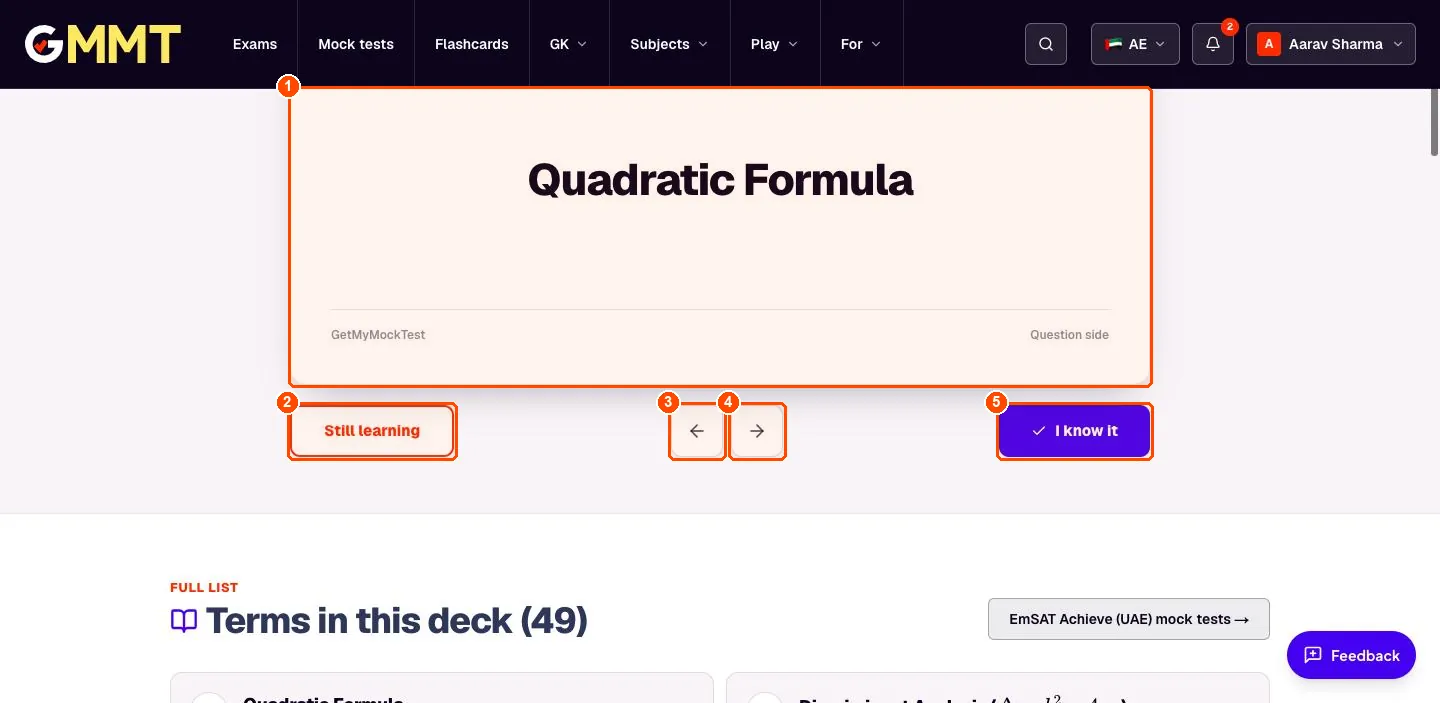
- The card. Click it, or press Space, to flip between the question side and the answer side.
- Still learning. Press this if you got it wrong. The card comes back soon.
- Previous card. Go back one card.
- Next card. Skip to the next card.
- I know it. Press this if you got it right. The card comes back later.
Choose a mock test
Open Mock tests and pick a practice test. Before you start you can see how long it is, how many questions it has and whether wrong answers lose marks.
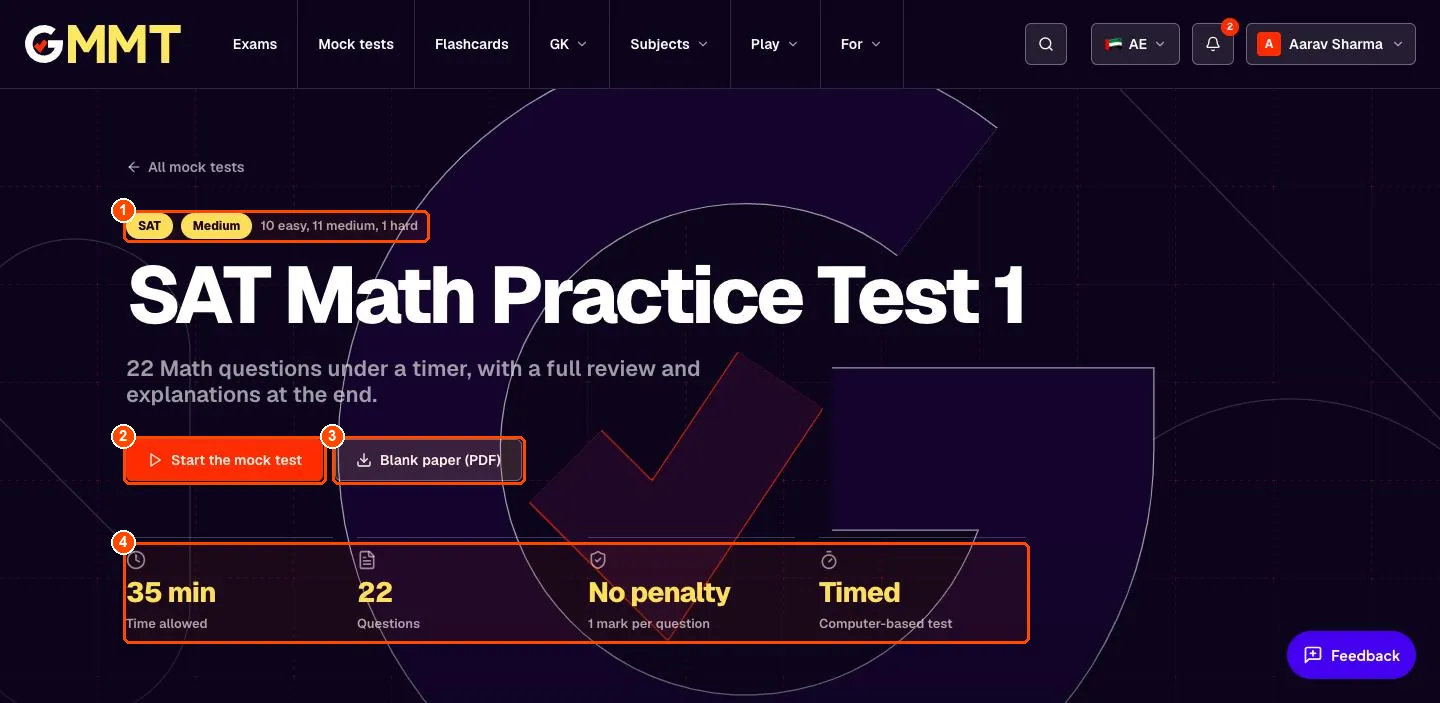
- Exam and level. Which exam it is for and how hard it is (here 10 easy, 11 medium and 1 hard question).
- Start the mock test. Starts the timer and opens the first question. You cannot pause the timer.
- Blank paper (PDF). Download the test as a printable paper to do offline.
- Test facts. Time allowed, number of questions, marking (no penalty for wrong answers here) and that it runs on the computer.
Take the test
Read the question, tap the answer you choose, then move on. Your answers save automatically, so a refresh will not lose your place. The timer keeps running.
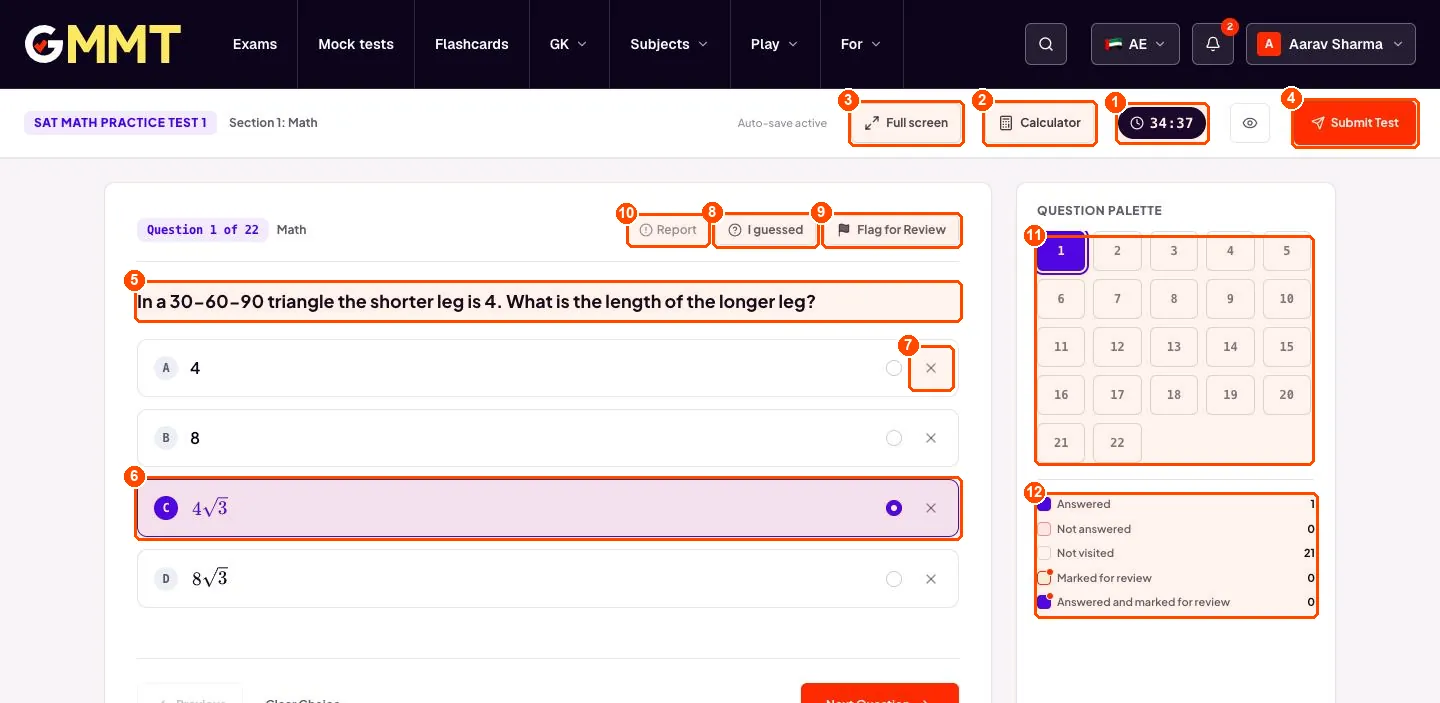
- Timer. Time left. When it reaches zero the test is submitted for you.
- Calculator. Opens an on-screen calculator for questions that allow one.
- Full screen. Hides the browser bars so you can focus.
- Submit Test. Finish the test. You get a last chance to review before it is final.
- Question. The question you are on (here question 1 of 22).
- Your answer. Tap an answer to choose it. The chosen one is highlighted.
- Cross out. The X crosses out an option you are sure is wrong. It is only a reminder for you.
- I guessed. Mark the question as a guess so you can revisit it in the results.
- Flag for Review. Bookmark the question to come back to it before you submit.
- Report. Tell us if a question or answer looks wrong.
- Question palette. One square per question. Tap a number to jump to it.
- Colour key. Blue = answered, red outline = seen but not answered, plain = not visited, orange dot = flagged.
See your results
As soon as you submit, you see your score. Scroll down to go through every question with the correct answer and a worked explanation.
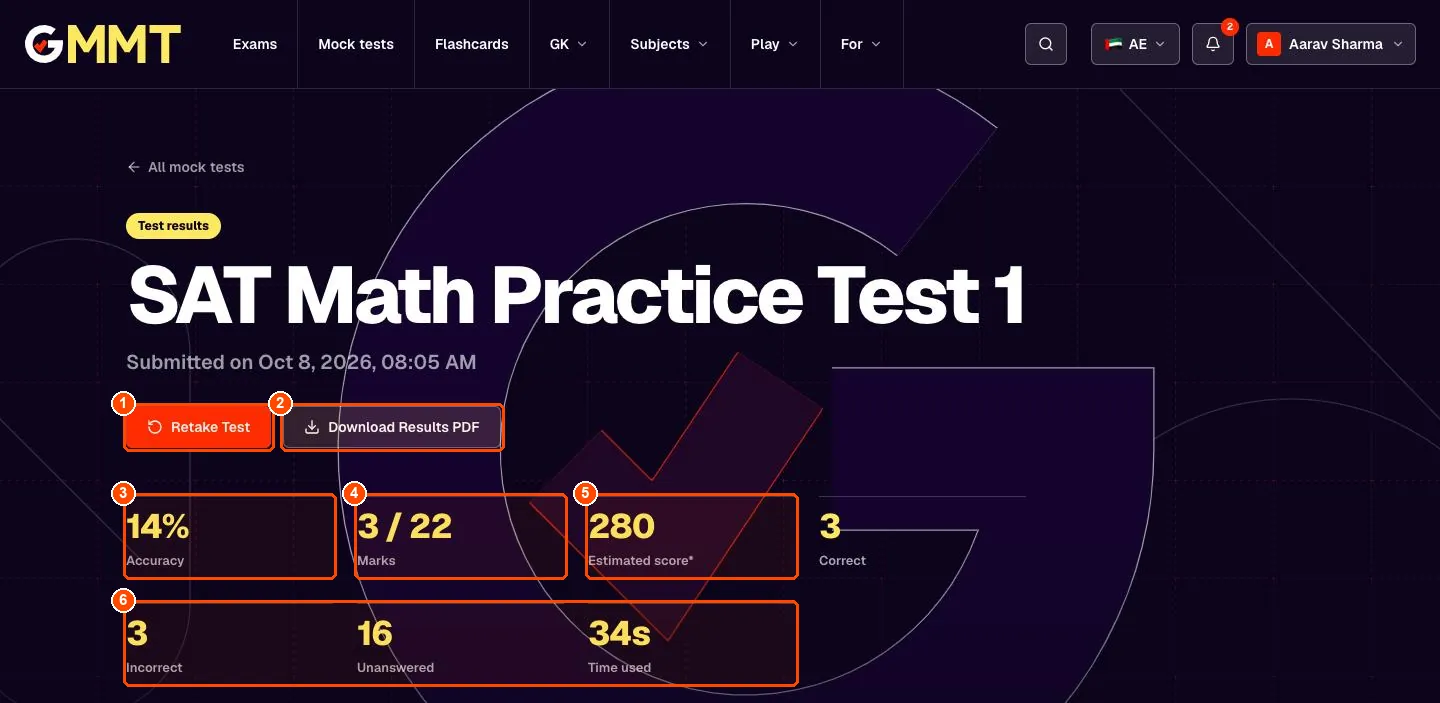
- Retake Test. Try the same test again to see if you improve.
- Download Results PDF. A printable copy of your score and answers.
- Accuracy. The percentage of all questions you got right.
- Marks. Your marks out of the total.
- Estimated score. An estimate on the real exam's scale. It is practice only, not an official result.
- Right, wrong and skipped. How many answers were wrong, how many you left blank, and how long you used.
How you did by difficulty
Scroll down on the results page. Easy, Medium and Hard show where you lost marks, so you know what to practise next.
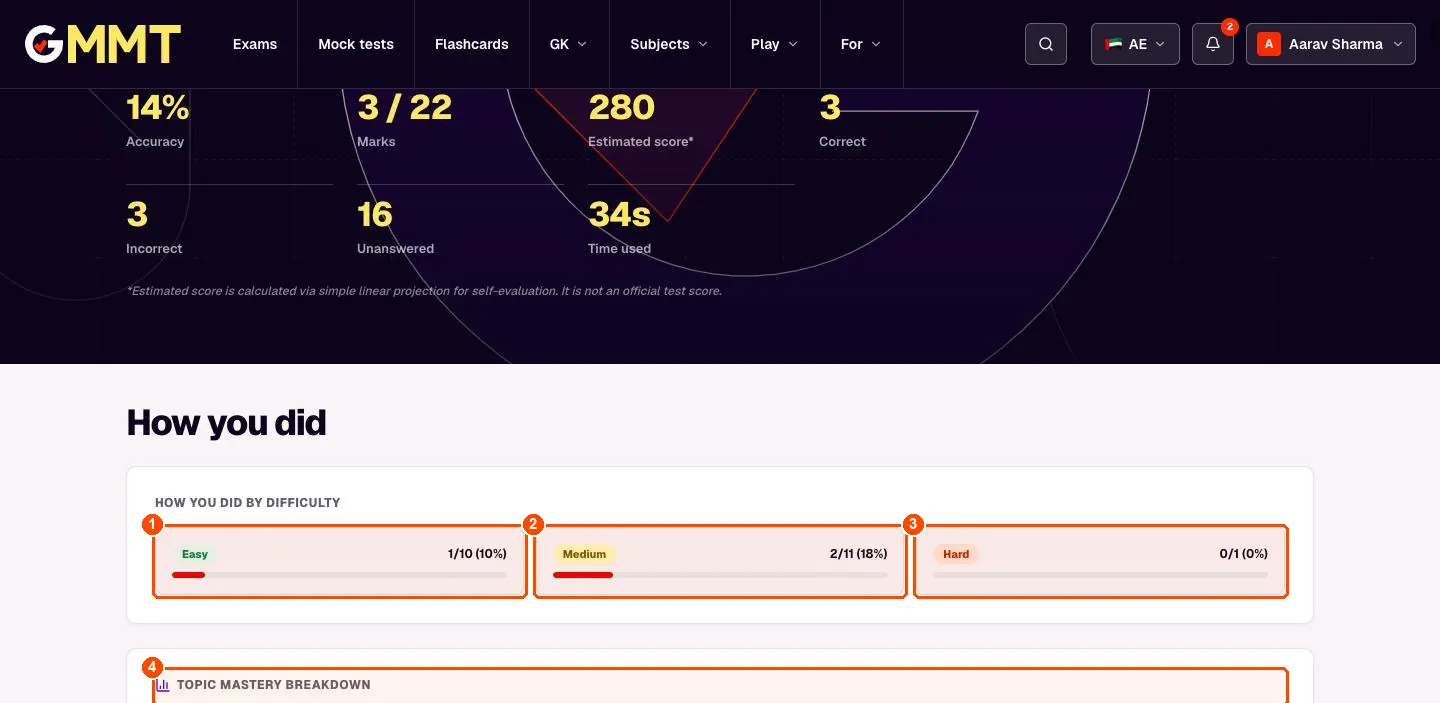
- Easy. Questions marked easy: how many you got right. Aim for 100% here.
- Medium. Questions of medium difficulty.
- Hard. The hardest questions. Leave these for last.
- Topic mastery. Just below: how well you did in each topic, so you know what to revise.
Learn from every question
Under Question-by-Question Review you see each question again. The right answer is green, your choice is labelled, and the explanation shows why each wrong option is wrong, then solves it step by step.
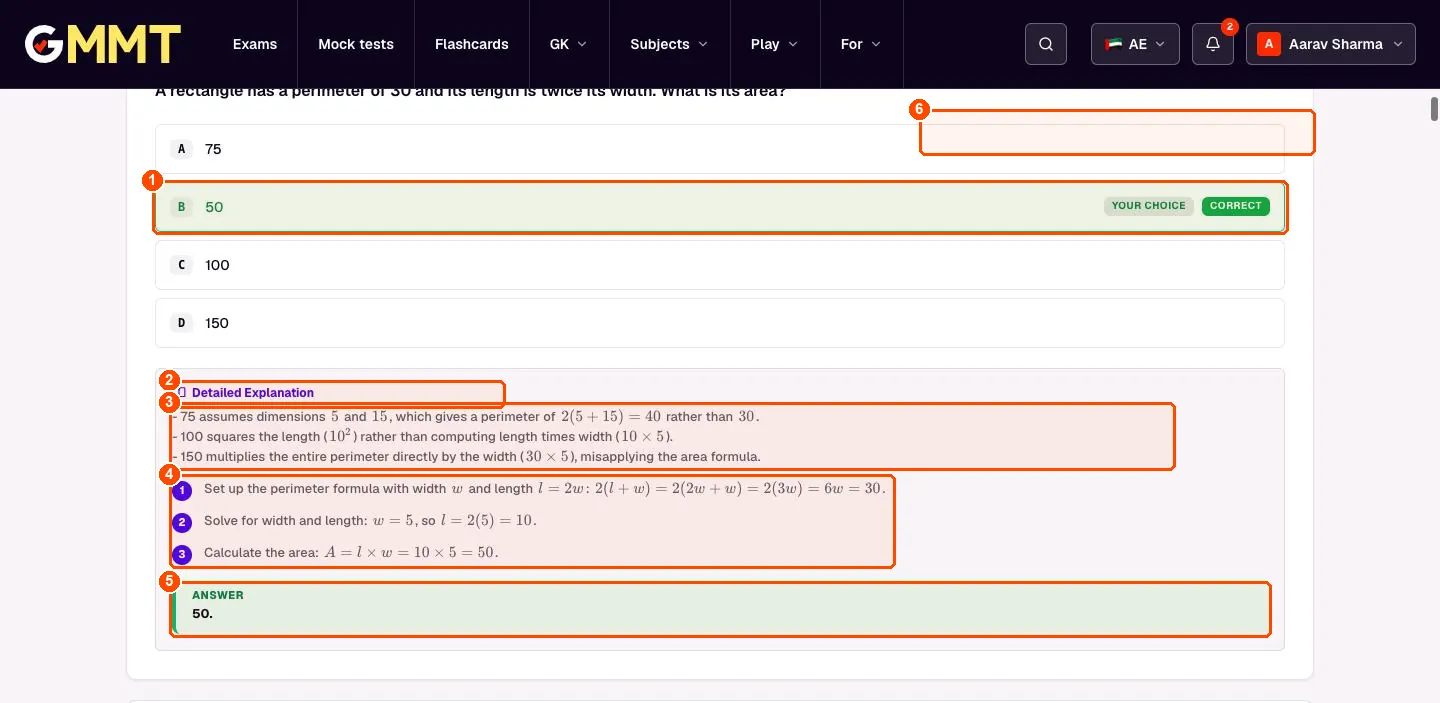
- Your choice and the correct answer. Green with the labels YOUR CHOICE and CORRECT means you got it right. If you were wrong, your choice is red and the correct one is green.
- Detailed Explanation. The explanation for this question.
- Why the wrong options are wrong. One line for each wrong option, so you can spot the common mistakes.
- Step-by-step solution. Numbered steps. Follow them with a pen and paper.
- Answer. The final answer.
- Filter. Show All, only Correct, only Incorrect or only Unanswered questions. Start with Incorrect.
Join your teacher's class
Your teacher gives you a join code (for example ABC123X). Open Groups, press Join Class, type the code and press Join Class. Your class and its homework appear straight away.
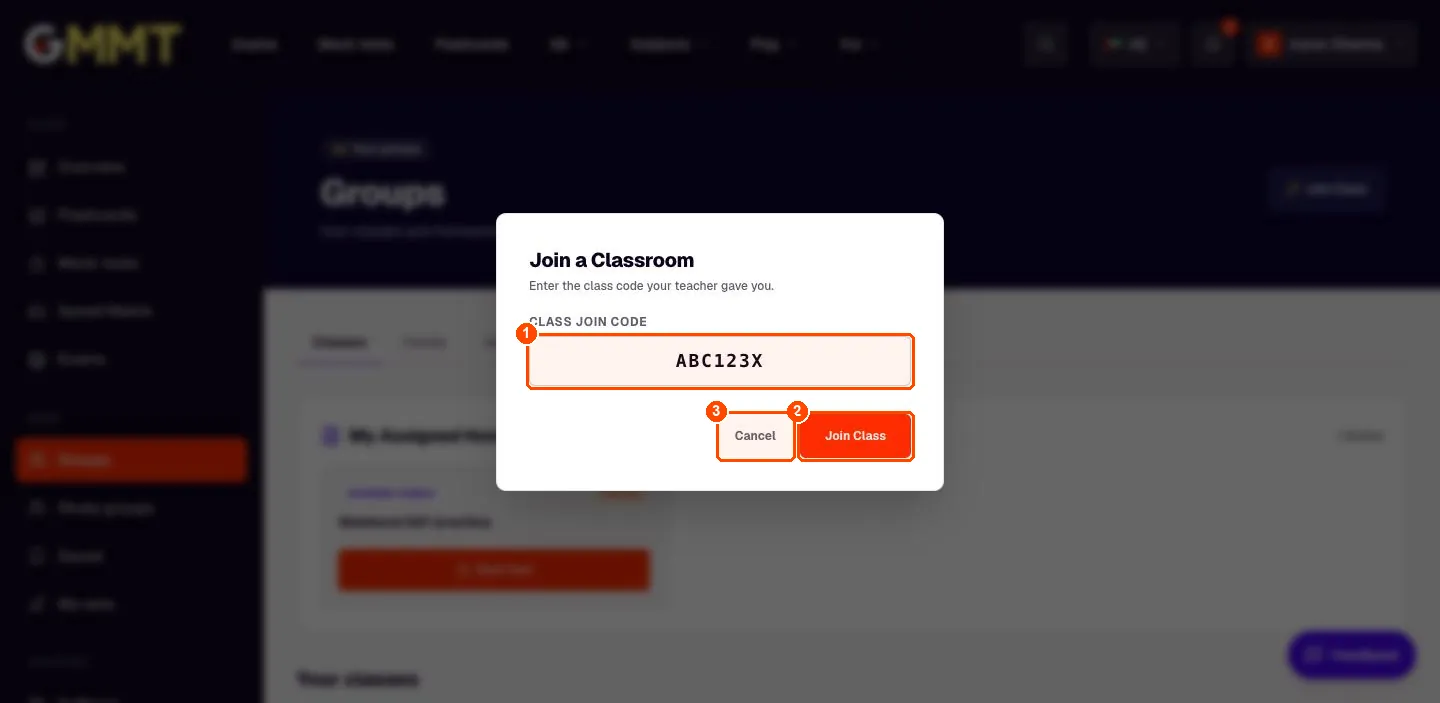
- Class join code. Type the code exactly as your teacher gave it. Capital letters and numbers, no spaces.
- Join Class. Joins the class. You can leave a class later from its page.
- Cancel. Close without joining.
Your classes and family
Groups has three tabs. Classes are made by teachers, Family is made by a parent, and Study groups are made by you and your friends. Each group is a card; press the button on the card to open it.
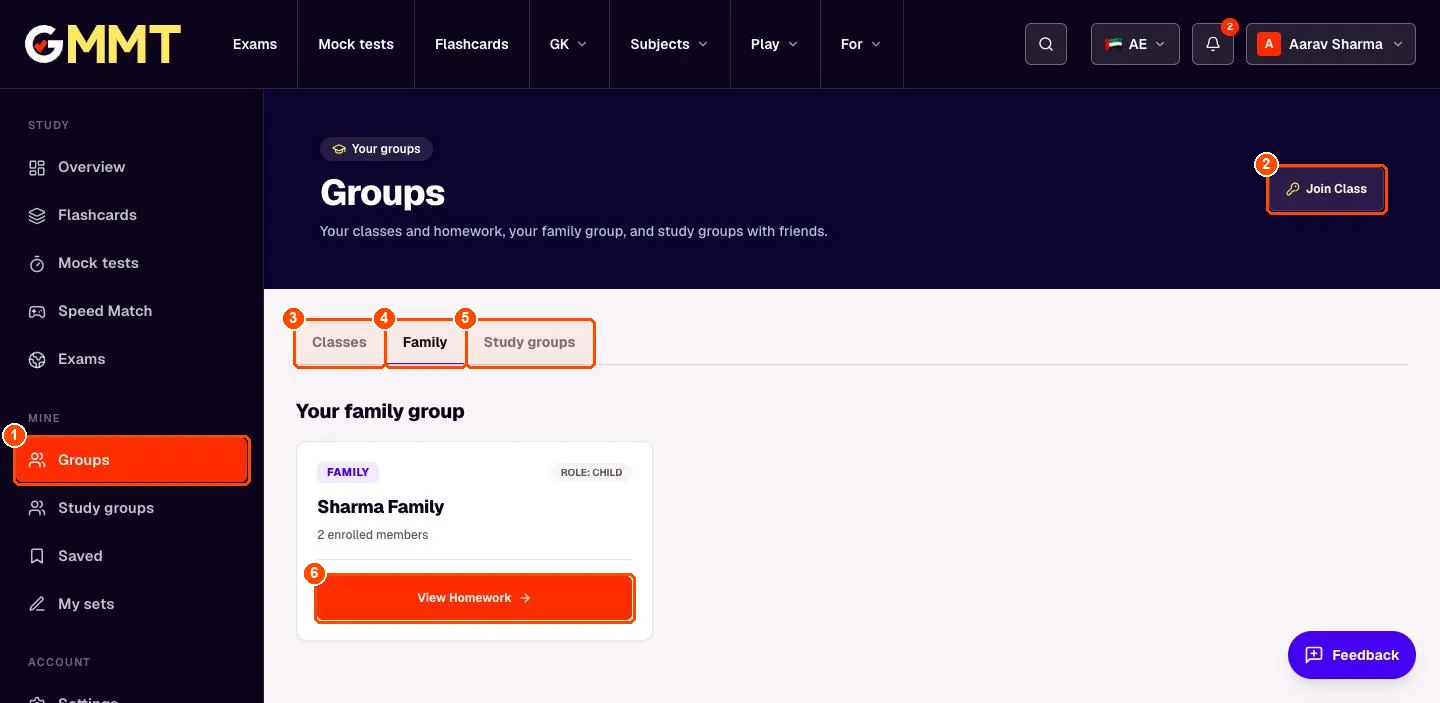
- Groups. The left-menu item that opens this page.
- Join Class. Type a class join code from your teacher.
- Classes. The classes you joined, with their homework.
- Family. Your family group. A parent invites you by email and you accept in one tap.
- Study groups. Private groups with friends (you must be 13 or older).
- View Homework. Open the group to see the homework set for you.
Do your homework
Open the group to see the homework your teacher or parent set. Press the button on the card to start. When you finish, the score goes to whoever set it.
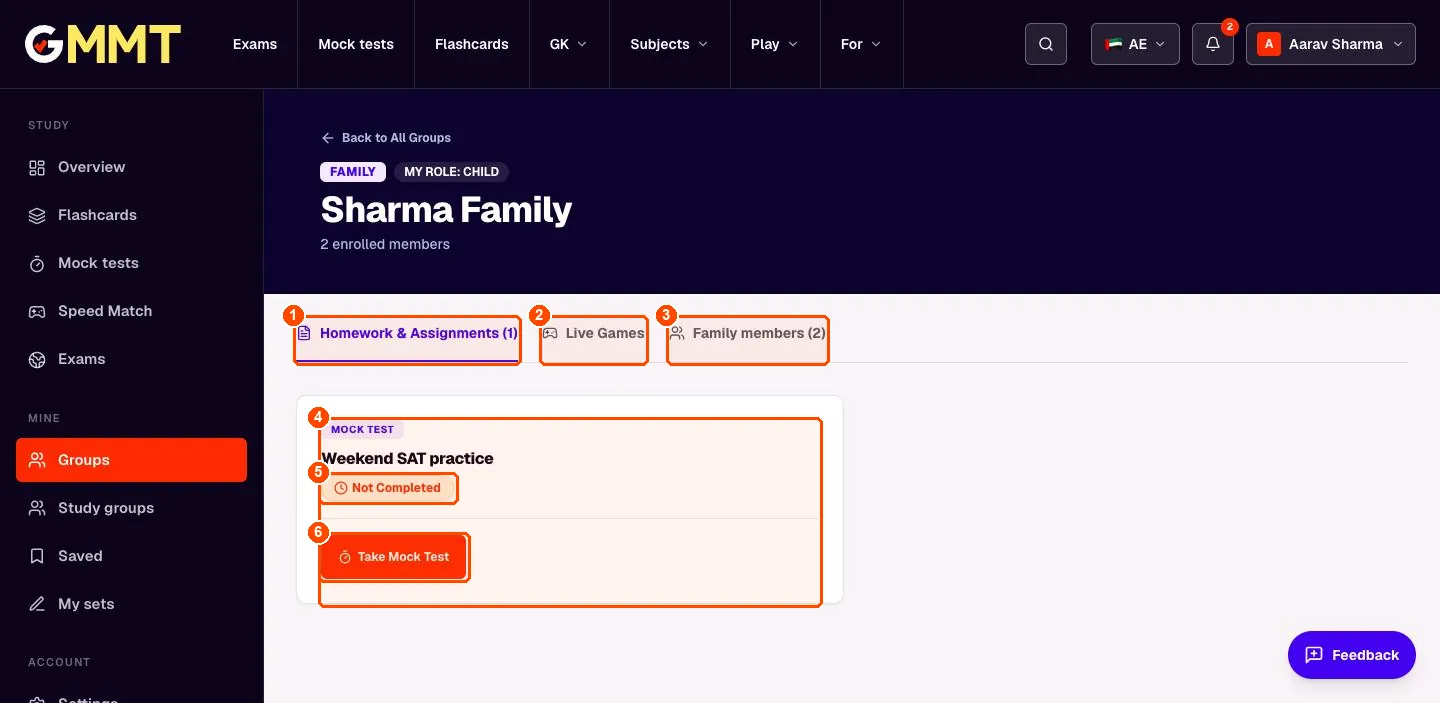
- Homework & Assignments. All the homework for you in this group.
- Live Games. Games played in this group.
- Family members. Who is in the group.
- Homework card. The name of the homework and the kind of work (here a mock test).
- Not Completed. Changes to Completed once you finish.
- Take Mock Test. Starts the test. For a flashcard deck homework this button opens the deck.
Notifications
The bell shows a number when something is new: homework, a family invite or a reminder. Tap the bell to read them and tap a line to go straight there.
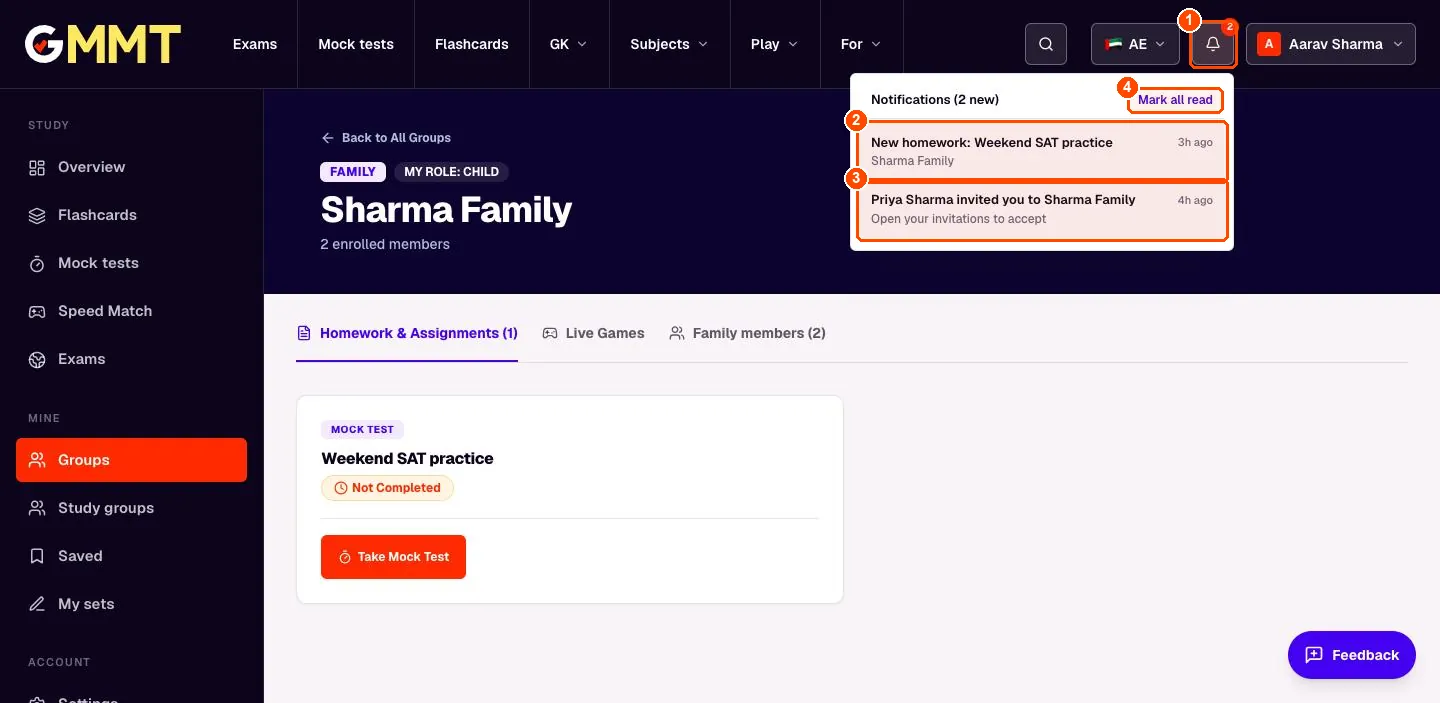
- Bell. The red number is how many new notifications you have.
- A notification. Tap it to open what it is about, for example the new homework.
- Family invite. When a parent invites you, tap this, open Groups and press Accept and Join.
- Mark all read. Clears the red number.
Join a live game
When your teacher or parent hosts a live game they show a 6-digit PIN. Open Play, then Live games, type the PIN and your nickname and press Join Arena. You do not need an account to play.
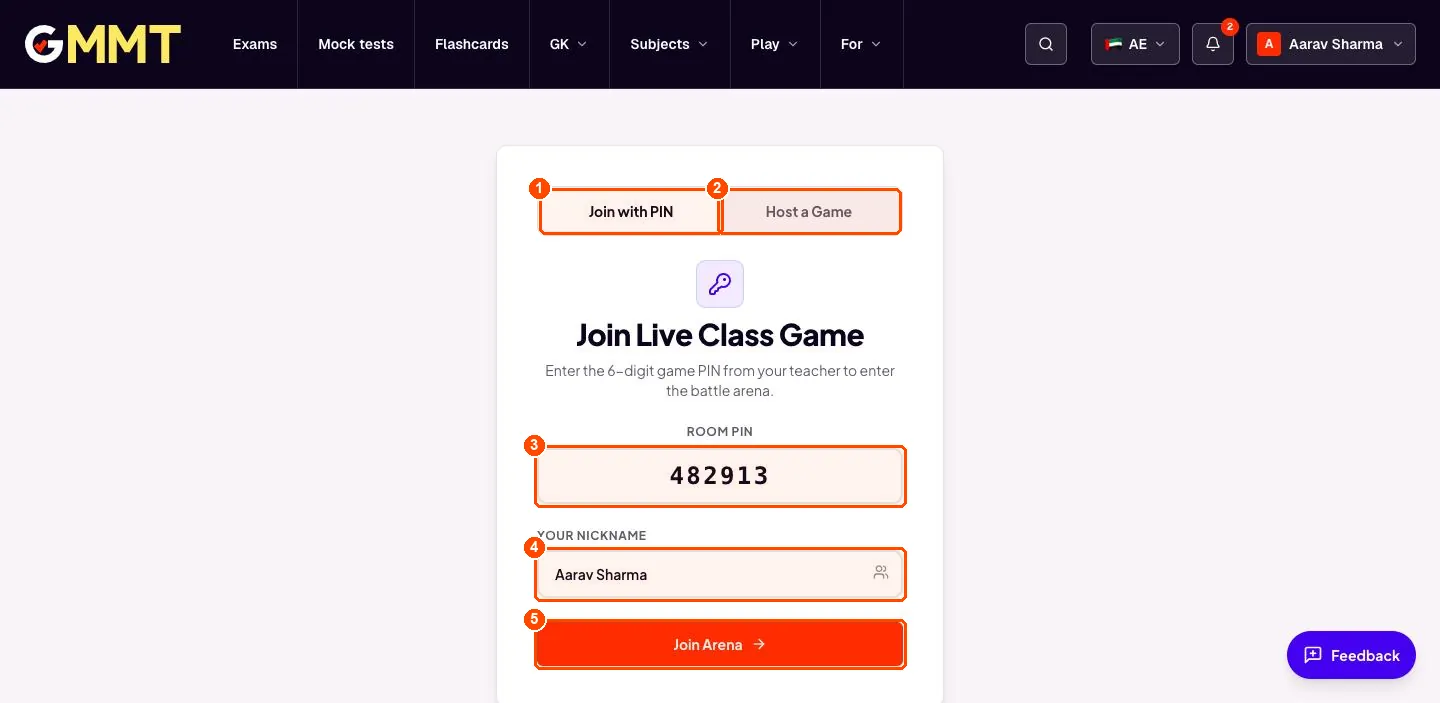
- Join with PIN. This tab is for players.
- Host a Game. This tab is for the person running the game (teachers and parents).
- Room PIN. The 6 numbers on the host's screen.
- Your nickname. The name shown on the scoreboard. Use a nickname, not your full name.
- Join Arena. Enter the game and wait for the host to start.
5 steps
Teachers
Create a class, share the join code, set homework, host games.
Your teacher dashboard
Sign up as a Teacher and you land here. The left menu has your classes and live games on top, and your library of tests and decks below. The big panel walks you through the first three steps.
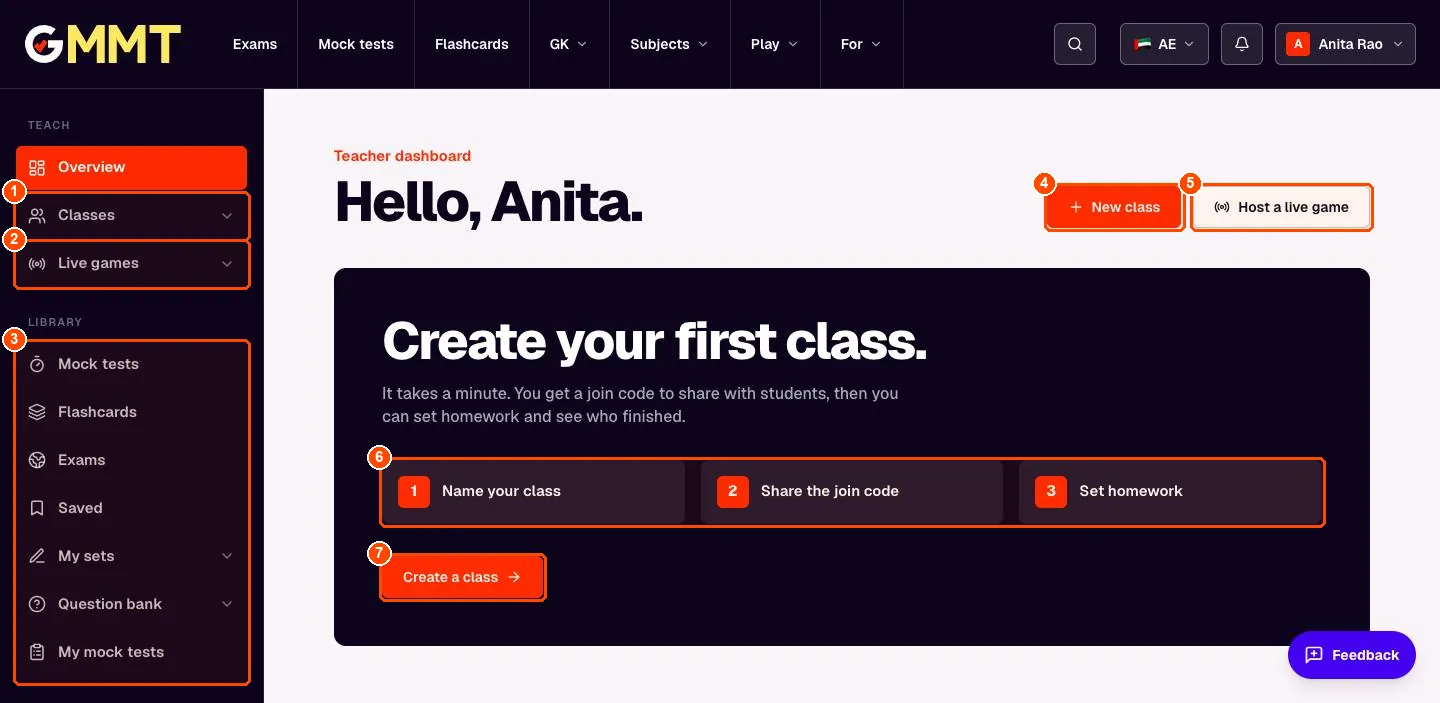
- Classes. All your classes. Open one to see students, homework and results.
- Live games. Host a quiz game for the class and see old games.
- Library. Mock tests, flashcards, exams, your own sets, your question bank and tests you built.
- New class. Create a class.
- Host a live game. Start a live game with a PIN right now.
- Three steps. 1 Name your class. 2 Share the join code. 3 Set homework.
- Create a class. Open the new-class box.
Create a class
Press New class, keep Classroom selected, type a name such as Class 9A Maths and press Create Group. A class is free and can hold your whole group of students.
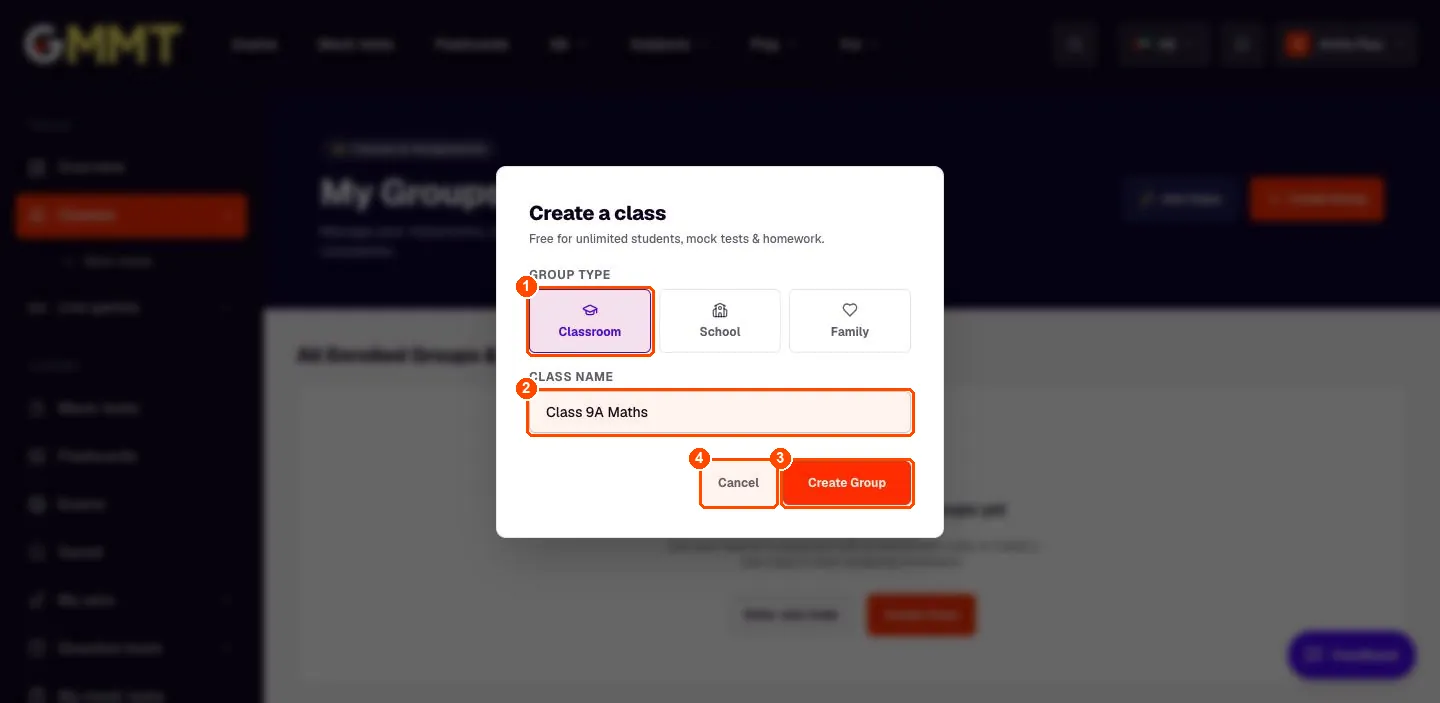
- Classroom. Choose Classroom for a class of students. School is for a school with many teachers.
- Class name. Any name your students will recognise.
- Create Group. Creates the class and opens it with its join code.
- Cancel. Close without creating.
Share the join code
Your new class opens with its join code. Write it on the board or send it to your students. They enter it under Groups, then Join Class, and they are in. All the tools for the class are on this page.
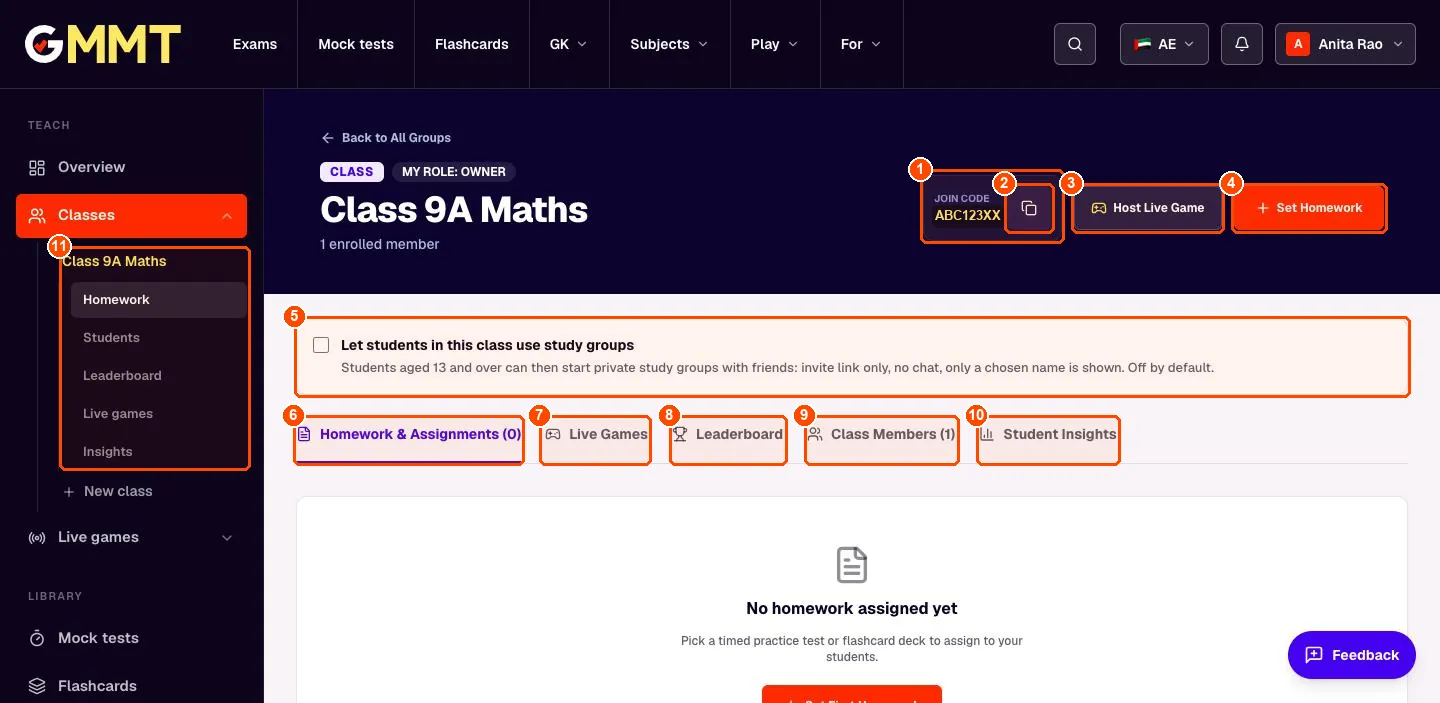
- Join code. Students type this code to join. It is the same for the whole class.
- Copy. Copies the code so you can paste it into a message.
- Host Live Game. Start a live quiz game for this class.
- Set Homework. Give the class a timed mock test or a flashcard deck, with a due date.
- Study groups switch. Tick this if you allow your students aged 13+ to make private study groups with friends. Off by default.
- Homework & Assignments. Everything you have set and who finished.
- Live Games. Games you ran and their scores.
- Leaderboard. Who is leading in the class.
- Class Members. Your students. Invite them by email here.
- Student Insights. Each student's accuracy, tests and weak topics.
- Class menu. The same tabs as short links in the left menu.
Set homework
Press Set Homework, choose a timed mock test or a flashcard deck, name it, add a due date and press Assign Homework. Every student in the class is notified by email and in the bell, and gets a reminder before the deadline.
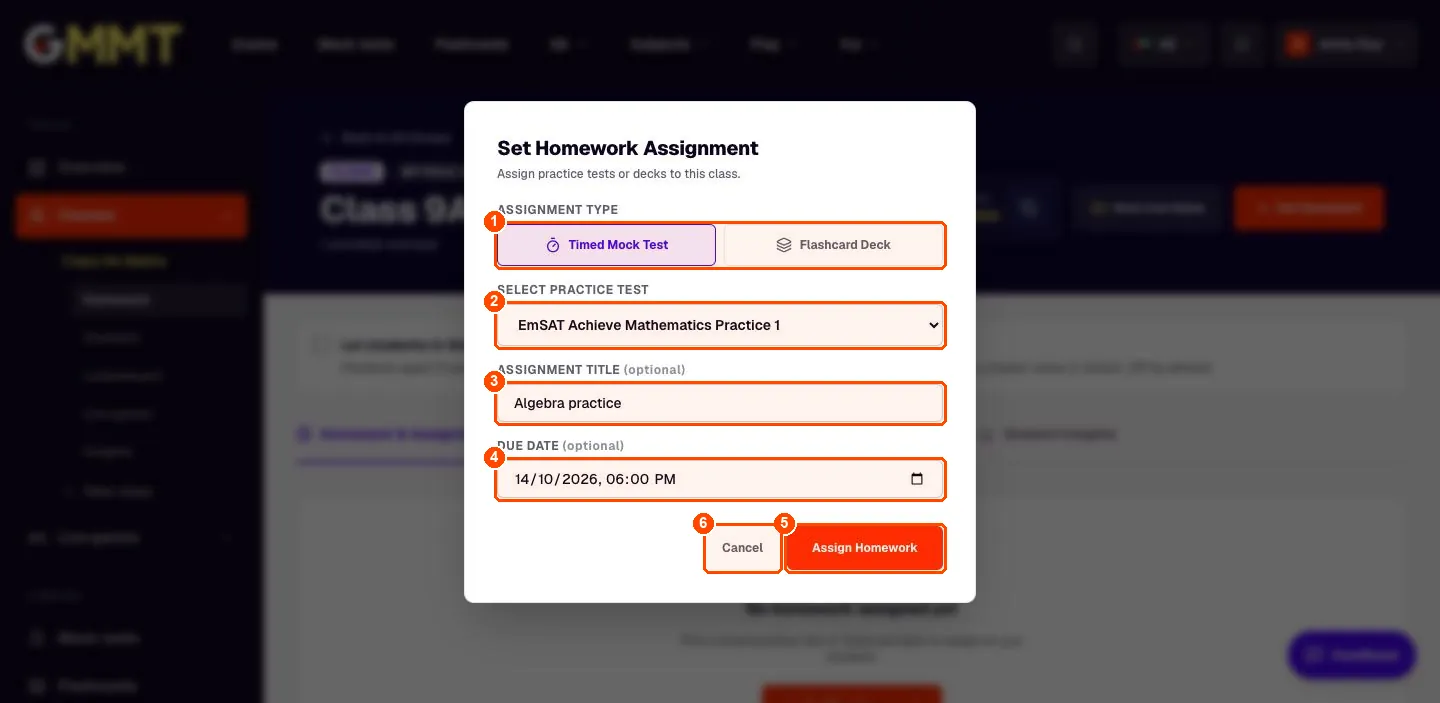
- Assignment type. Timed Mock Test (a practice paper under a timer) or Flashcard Deck (cards to study).
- Select practice test. The list starts with the exams of your country. Pick the test or deck here.
- Assignment title. Optional. Students see this name, for example Algebra practice.
- Due date. Optional deadline and time.
- Assign Homework. Sends it to the whole class.
- Cancel. Close without assigning.
Host a live game
Open Play, then Live games, then the Host a Game tab. Choose who can join, the exam and topic, how many questions and how long for each. Scroll down and press Create & Start Arena. A 6-digit PIN appears for students to type in.
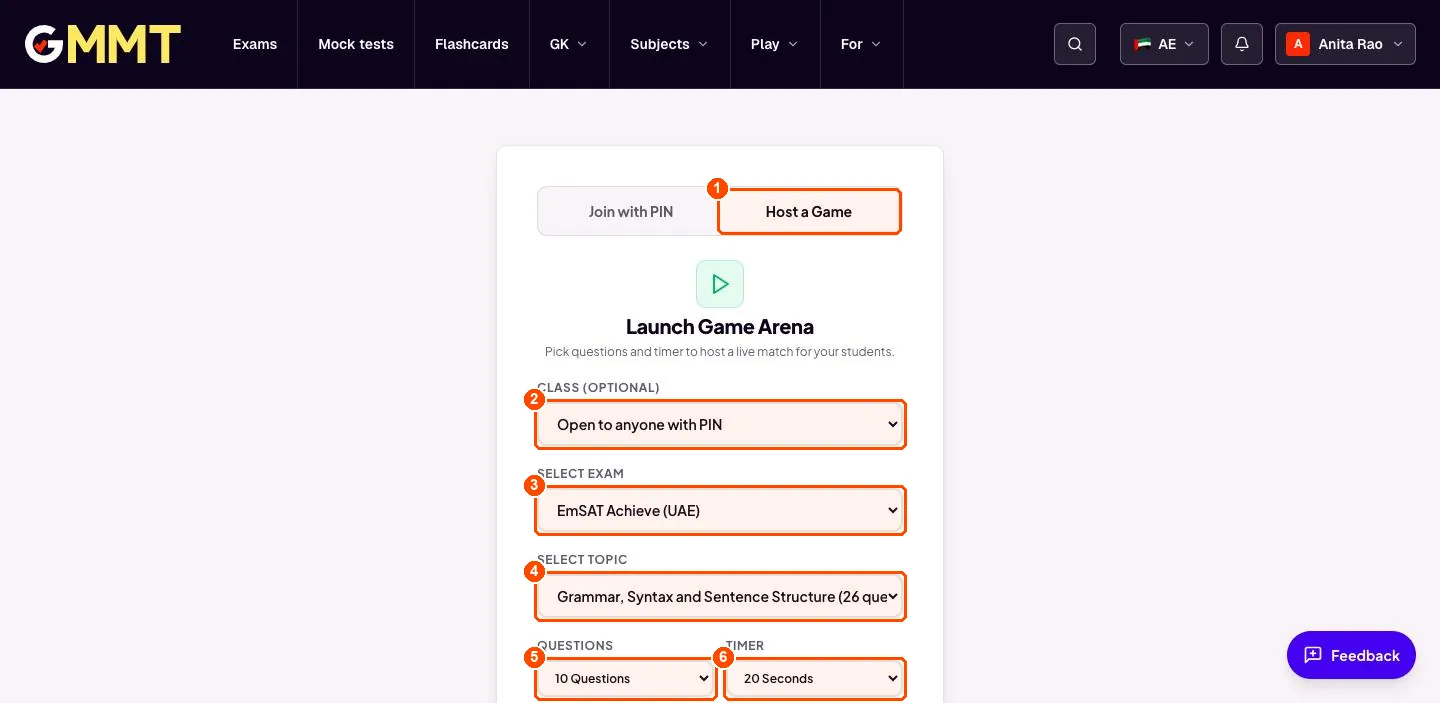
- Host a Game. The tab for the person running the game.
- Class. Pick one of your classes, or leave Open to anyone with PIN.
- Select exam. The exam the questions come from.
- Select topic. The topic, with the number of questions available.
- Questions. 5, 10 or 15 questions.
- Timer. 15, 20 or 30 seconds per question.
7 steps
Parents
Make a family group, invite your child, set homework, see progress.
Your parent dashboard
After you sign in as a parent you land here. The left menu is your map; the tiles show how your children are doing at a glance.
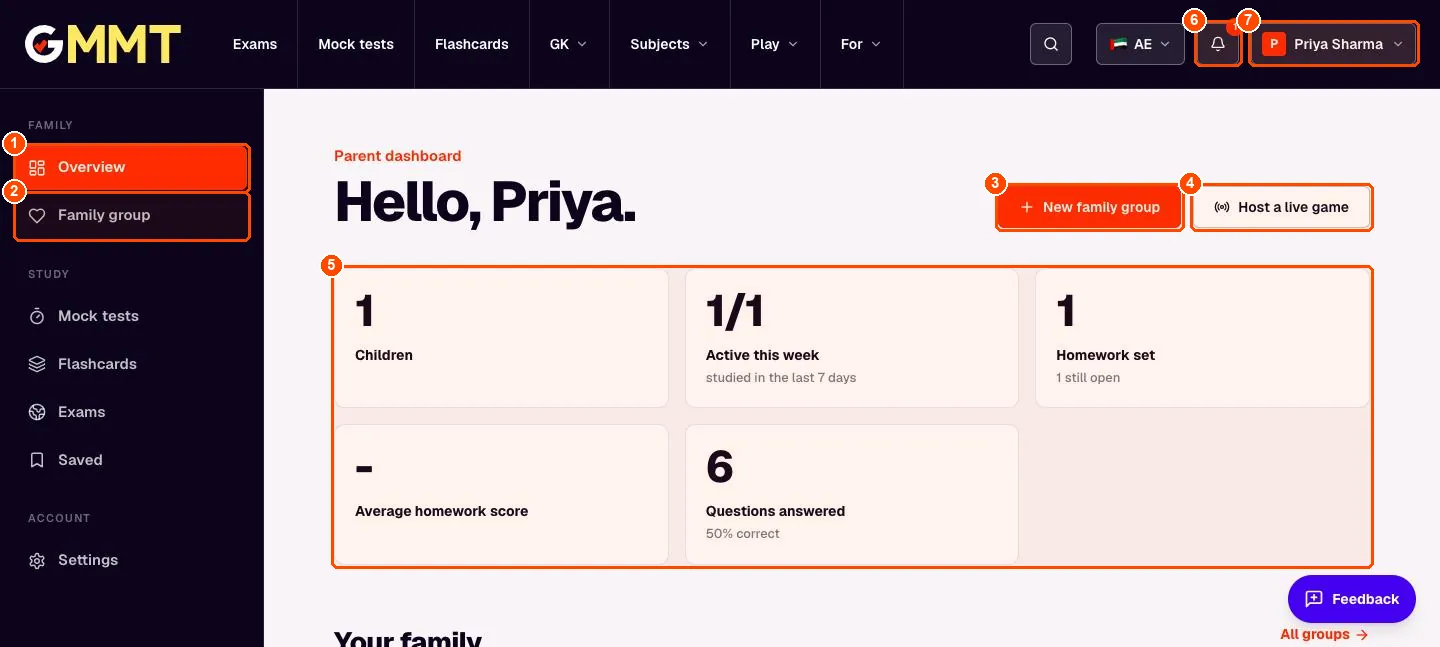
- Overview. This page: the summary of your family.
- Family group. Your family space: members, homework and your children's progress.
- New family group. Start a family group (one per family). You can add up to 5 people.
- Host a live game. Run a quiz game with a PIN that your children join from their own phones.
- Summary tiles. Children in the group, how many studied this week, homework set, average homework score, and questions answered with the percentage right.
- Bell. Notifications such as a child accepting your invite or finishing homework.
- Your name. Open your account menu: settings and sign out.
Create your family group
A family group is a private space for you and your children (up to 5 people). Choose Family, type a name and press Create Group.
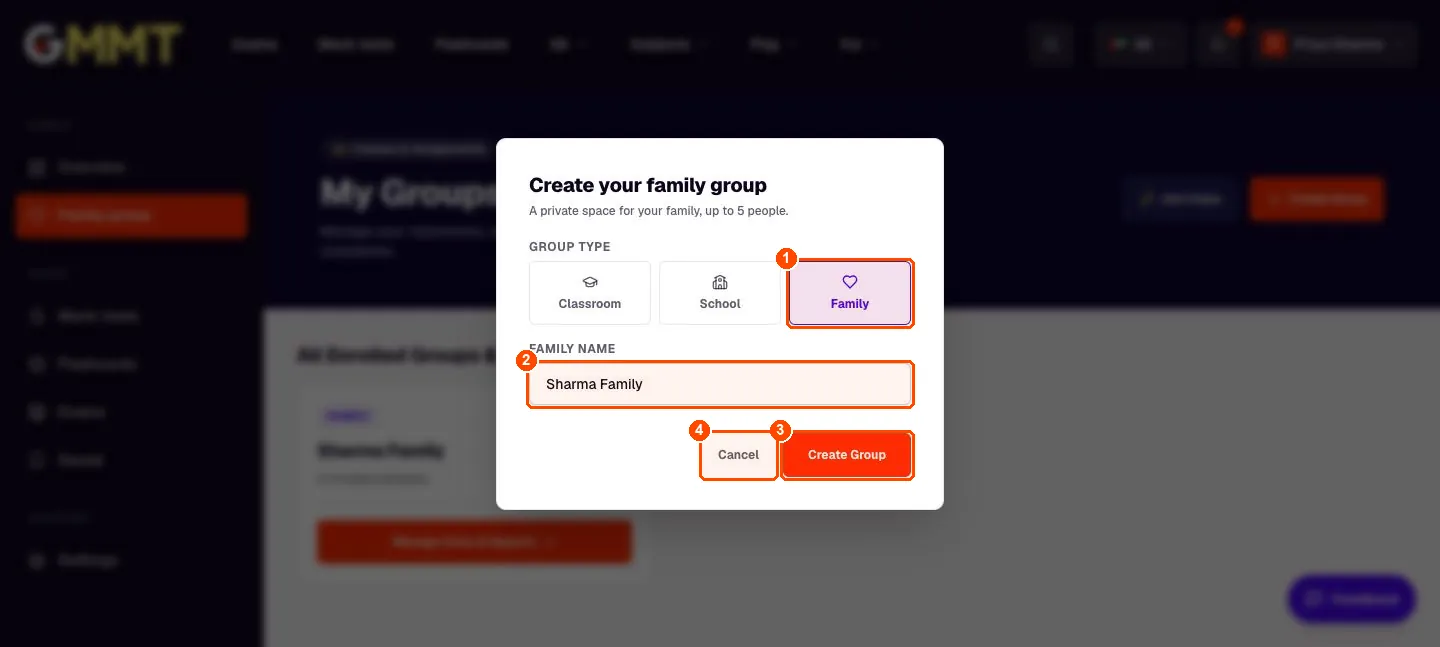
- Family. Choose Family. (Classroom is for teachers, School is for schools.)
- Family name. Any name your family will recognise, for example Sharma Family.
- Create Group. Creates the group and opens it. Nothing is sent to anyone yet.
- Cancel. Close this box without creating anything.
Invite your child
Open the Family members tab and press Invite by Email. Type your child's email, choose their role and send. They get an email and a notification, and the invite is valid for 14 days.
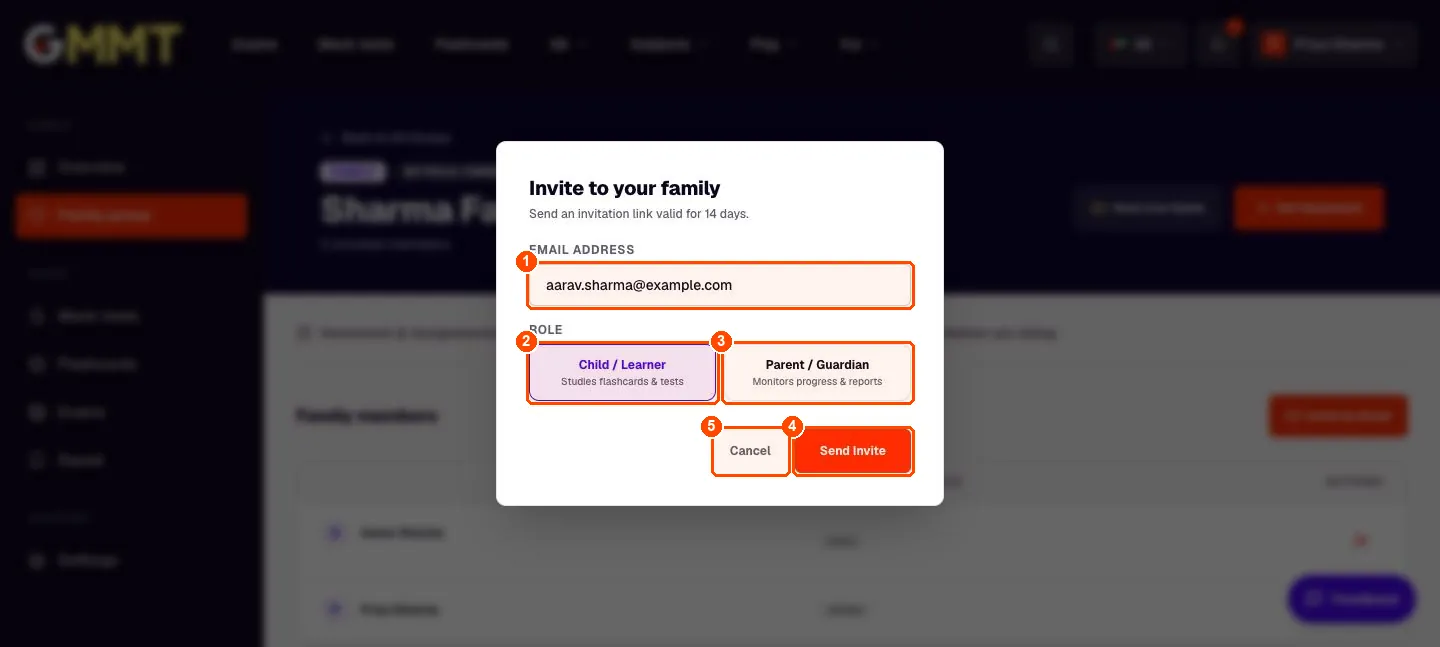
- Email address. The email your child uses (or will use) to sign in.
- Child / Learner. Choose this for your child. They can study and do homework.
- Parent / Guardian. Choose this to add another parent. They can see progress and set homework.
- Send Invite. Sends the invitation. You will see it as pending until it is accepted.
- Cancel. Close without sending.
Your family group page
Open Family group in the left menu, then your group. Everything for your family is on this page: homework, games, members and your children's progress.
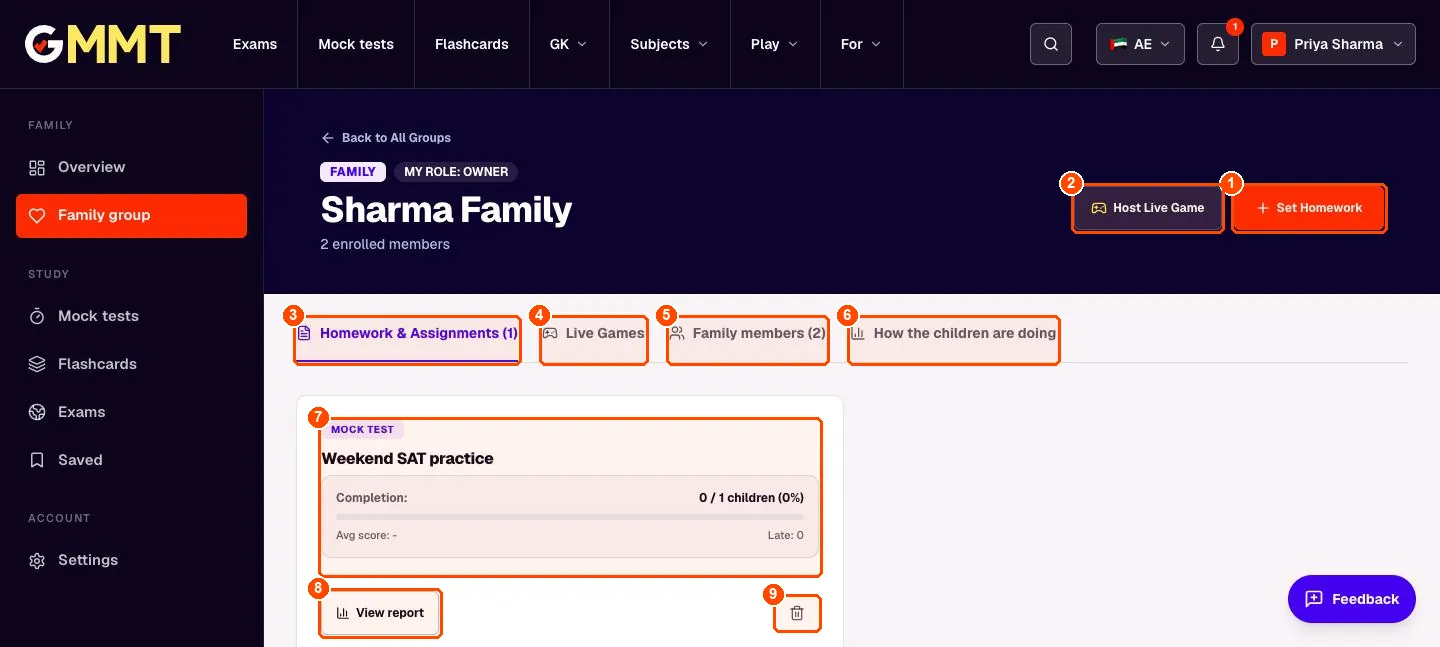
- Set Homework. Give your children a timed mock test or a flashcard deck, with an optional due date.
- Host Live Game. Start a live quiz game with a PIN for the family.
- Homework & Assignments. All the homework you have set and how many children finished each one.
- Live Games. Past live games and their scores.
- Family members. Who is in the group. Invite a child or another parent from here.
- How the children are doing. Questions answered, accuracy and the weak topics of each child.
- Homework card. One card per homework: its name, how many children are done, the average score and how many were late.
- View report. See which child did the homework and their score.
- Bin. Delete this homework.
Set homework for your children
Press Set Homework, pick a timed mock test or a flashcard deck, add an optional title and due date, then press Assign Homework. Your children get a notification and an email.
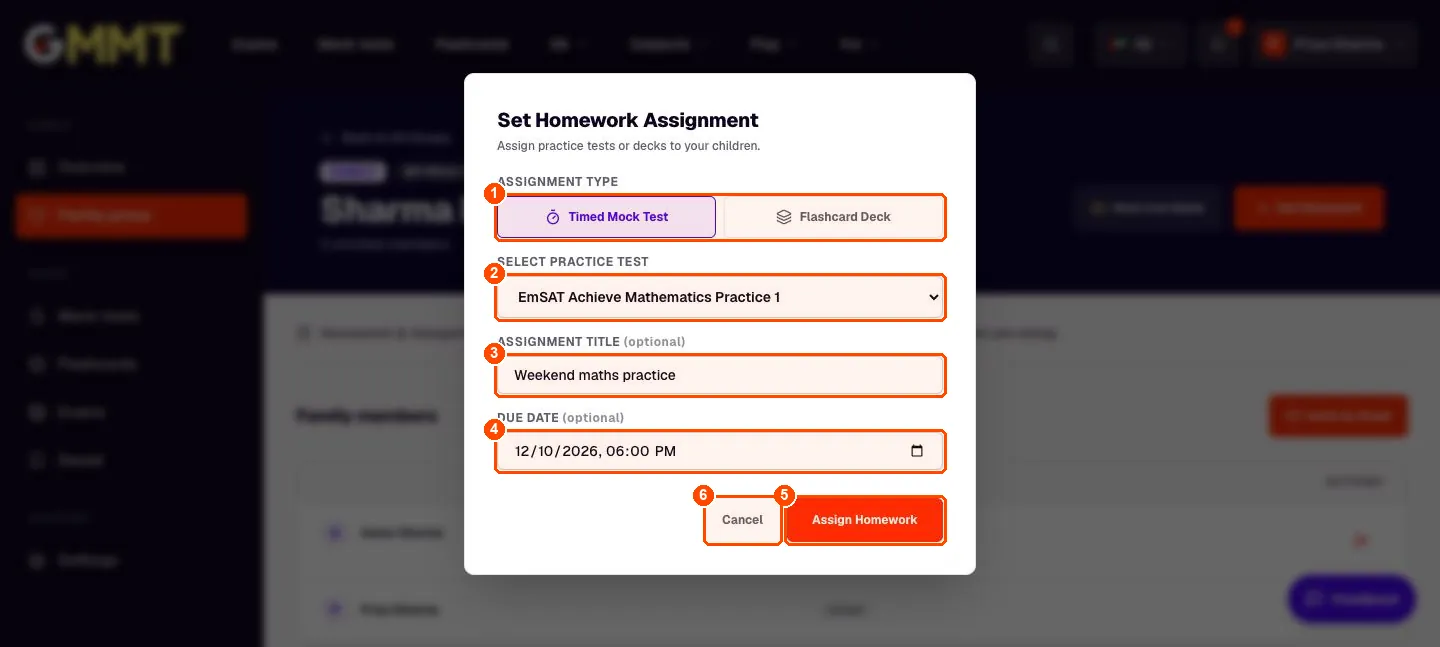
- Assignment type. Choose Timed Mock Test (a practice paper under a timer) or Flashcard Deck (cards to study).
- Select practice test. Pick the test or deck. The list starts with the exams of your country.
- Assignment title. Optional name your children will see, for example Weekend maths practice.
- Due date. Optional deadline. A reminder goes out the day before.
- Assign Homework. Sends the homework to your children.
- Cancel. Close without assigning.
See how your children are doing
Open the How the children are doing tab. You get one row per child. It only shows what your child has done on the site, so you can talk about it together.
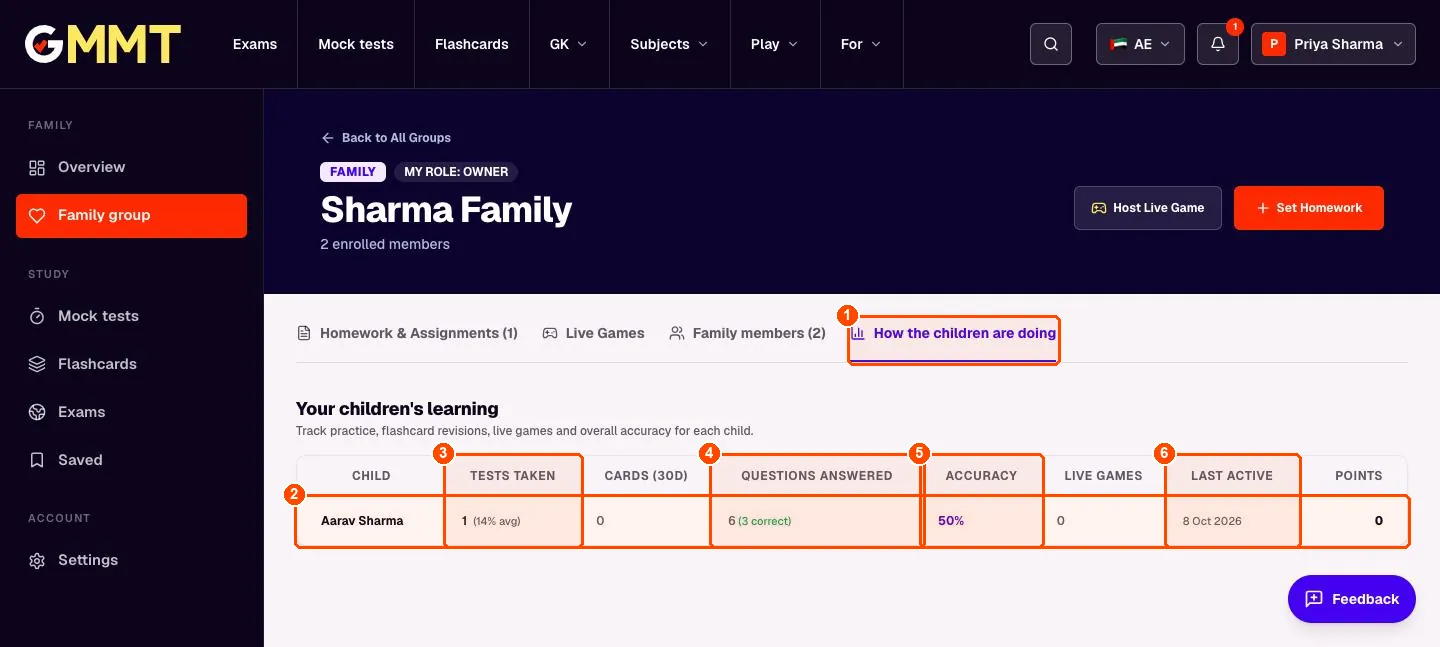
- How the children are doing. The tab that shows each child's progress.
- Child row. One row per child in your family group.
- Tests taken. How many mock tests your child finished, with the average score in brackets.
- Questions answered. How many practice questions they answered and how many were correct.
- Accuracy. The share of answers that were right. Higher is better.
- Last active. The last day they studied. Useful to spot a long gap.
All your groups in one place
The Family group item in the left menu opens this list. Each group you belong to is a card. You can join a class with a code or start another group from here.
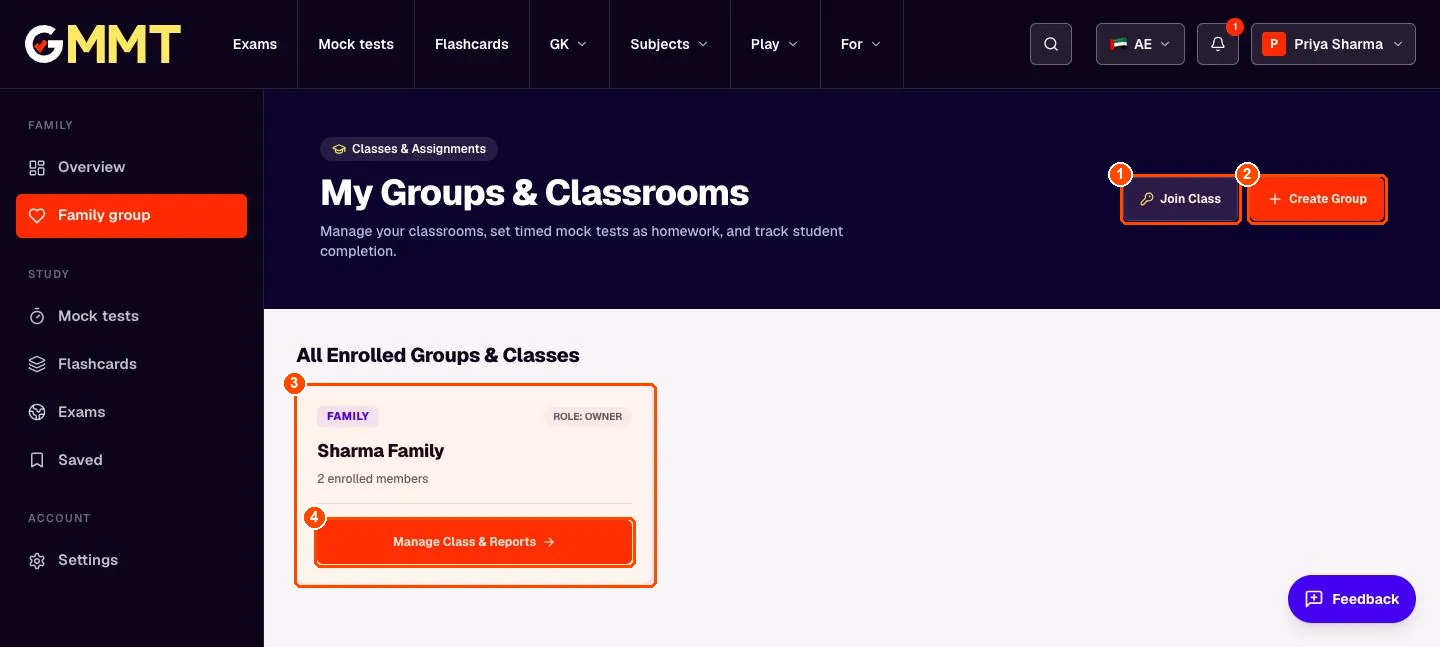
- Join Class. Enter a code if a teacher or another family gave you one.
- Create Group. Start a family group, a class or a school.
- Group card. One card per group: its type (Family), your role in it and how many people are in it.
- Open the group. Opens the group page with homework, members and progress.
3 steps
Study groups with friends
A private group for friends aged 13 and over.
Start a study group with friends
Open Study groups in the left menu. Give the group a name and choose the nickname your friends will see. You must be 13 or older. There is no public search and no chat: you only join with an invite link.
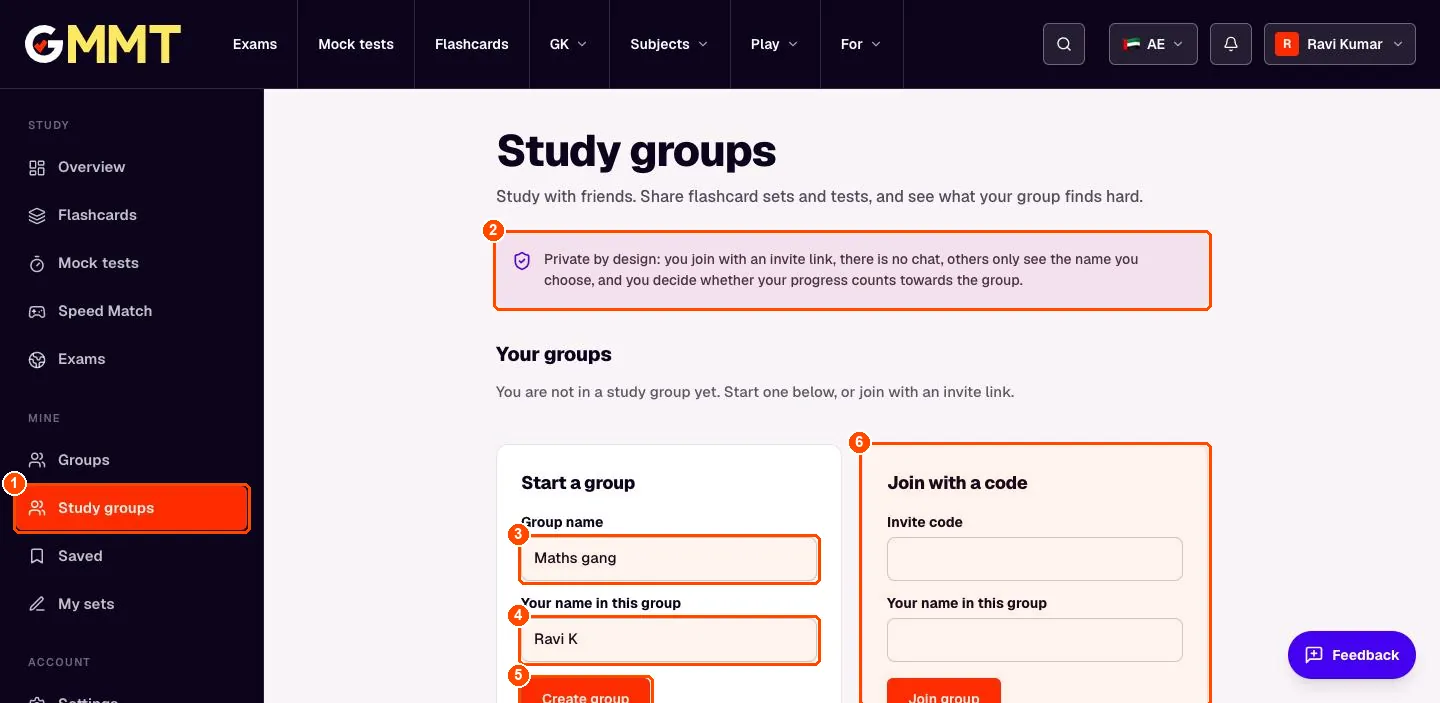
- Study groups. The left-menu item for study groups. It appears for students aged 13+.
- Privacy note. How it is kept safe: invite link only, no chat, only your chosen name is shown, progress sharing is your choice.
- Group name. For example Maths gang.
- Your name in this group. A nickname. Letters, numbers and spaces only: no emails, links or phone numbers.
- Create group. Creates the group and gives you a private invite link.
- Join with a code. If a friend sent you an invite, paste the code here and choose your own nickname.
Invite your friends
Your group is ready. Copy the private invite link and send it to friends in any messaging app. Only you can see the link, and you can reset it at any time to stop the old one working.
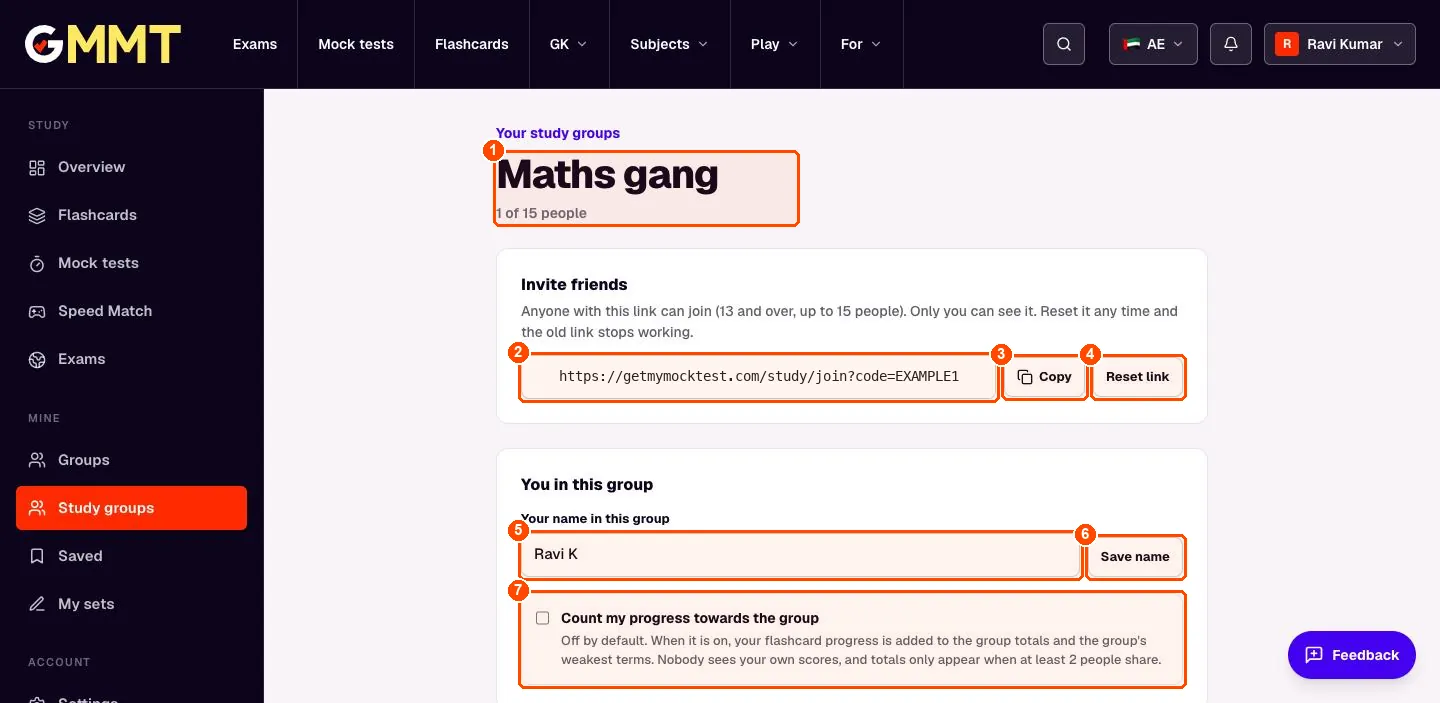
- Group name and size. The group name and how many people are in it (up to 15).
- Invite link. A private link for this group. Anyone with it can join if they are 13 or older.
- Copy. Copies the link so you can paste it into a message.
- Reset link. Makes a new link. The old one stops working.
- Your name in this group. The nickname your friends see. Change it any time.
- Save name. Save the new nickname.
- Count my progress. Off by default. Tick it if you want your flashcard progress to count towards the group totals. Nobody sees your own scores.
Choose what to study together
Under Materials, search for a flashcard set or a mock test and press Add. Everyone in the group sees the same list. The Progress tab shows what the group finds hard once at least two people choose to share. The Members tab shows who is in.
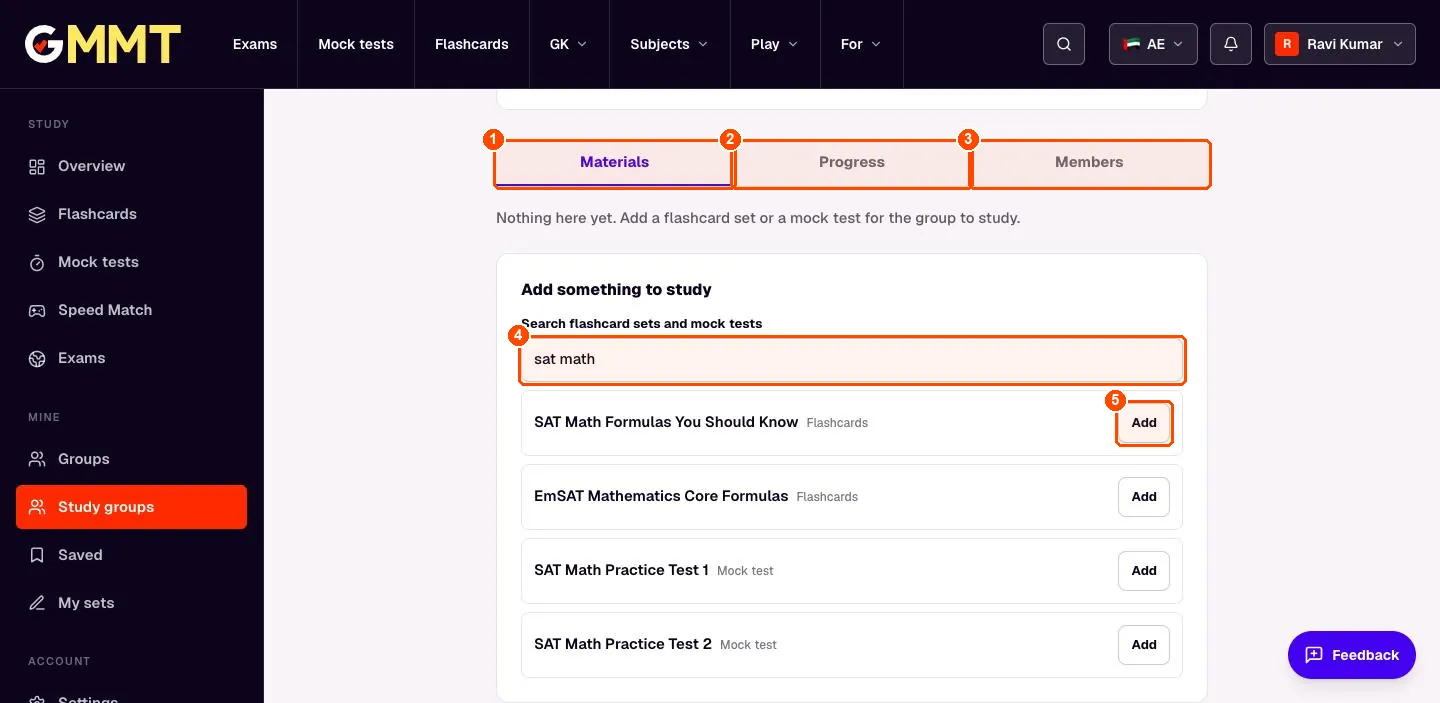
- Materials. What the group is studying. You can add up to 30 items.
- Progress. The weakest terms of the whole group. It only appears when at least 2 people share their progress.
- Members. The nicknames of everyone in the group and who shares progress.
- Search. Search flashcard sets and mock tests, for example fractions or sat math.
- Add. Add this set or test to the group.
Still stuck?
Read the short answers on the Help page, or tell us what is confusing and we will add it here.